HACCP records for butchers

Your food safety diary, kept properly every day.

hacc.app replaces the paper diary and the fridge sheets with a tablet by the counter. Staff see what is due, type in each temperature, tick the checklists and sign off the day. Before anyone signs, anything outstanding has to be finished or given a reason.

  • Each fridge reading sits beside its allowed range. One outside it turns the row red.
  • We set your shop up from the paper sheets you keep now.
  • Runs in a web browser on a tablet or computer. Nothing to install.
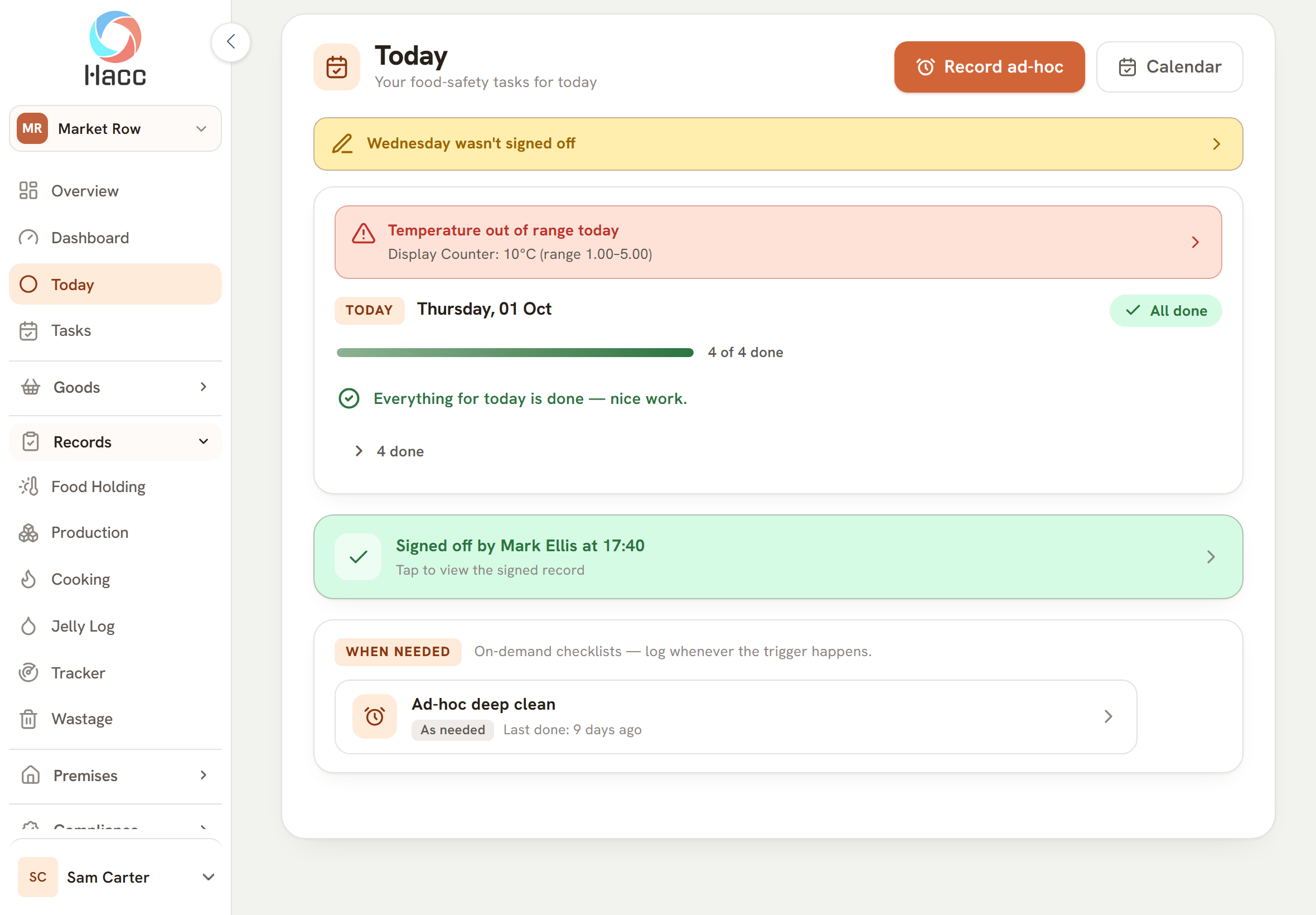
The Today page on a tablet with the menu open down the left. The menu shows the shop's name, then Overview, Dashboard, Today, Tasks, Goods, Records (open, listing Food Holding, Production, Cooking, Jelly Log, Tracker and Wastage) and Premises. On the page, an amber banner says the previous working day was not signed off. A red banner headed "Temperature out of range today" shows the display counter at 10°C against a range of 1 to 5. Under "Thursday, 01 Oct" a label reads "All done" beside a full green bar and "4 of 4 done". A green band shows the day was signed off, and a "When needed" band lists an ad-hoc deep clean, marked "As needed" and last done 9 days ago.
A day with every check done and one reading flagged out of range.

The paper problem

The folder in the back room only gets read when it is too late

Every butcher keeps records because they have to. The trouble is what paper does to them: gaps nobody noticed, fridge temperatures written up at the end of the week, and a folder that only comes out when someone asks to see it.

  • Gaps you find too late

    A missed check is invisible until someone flicks back through the pages. That someone may be the inspector.

  • Written up from memory

    A fridge sheet filled in on Friday for the whole week is a guess, and it reads like one.

  • Nothing to hand when it counts

    An unannounced visit means hunting through a folder while someone waits and watches.

A day in the shop

From opening up to signing off

Five things your staff do in a day, on the screens they do them on.

  1. Open up and see what is due

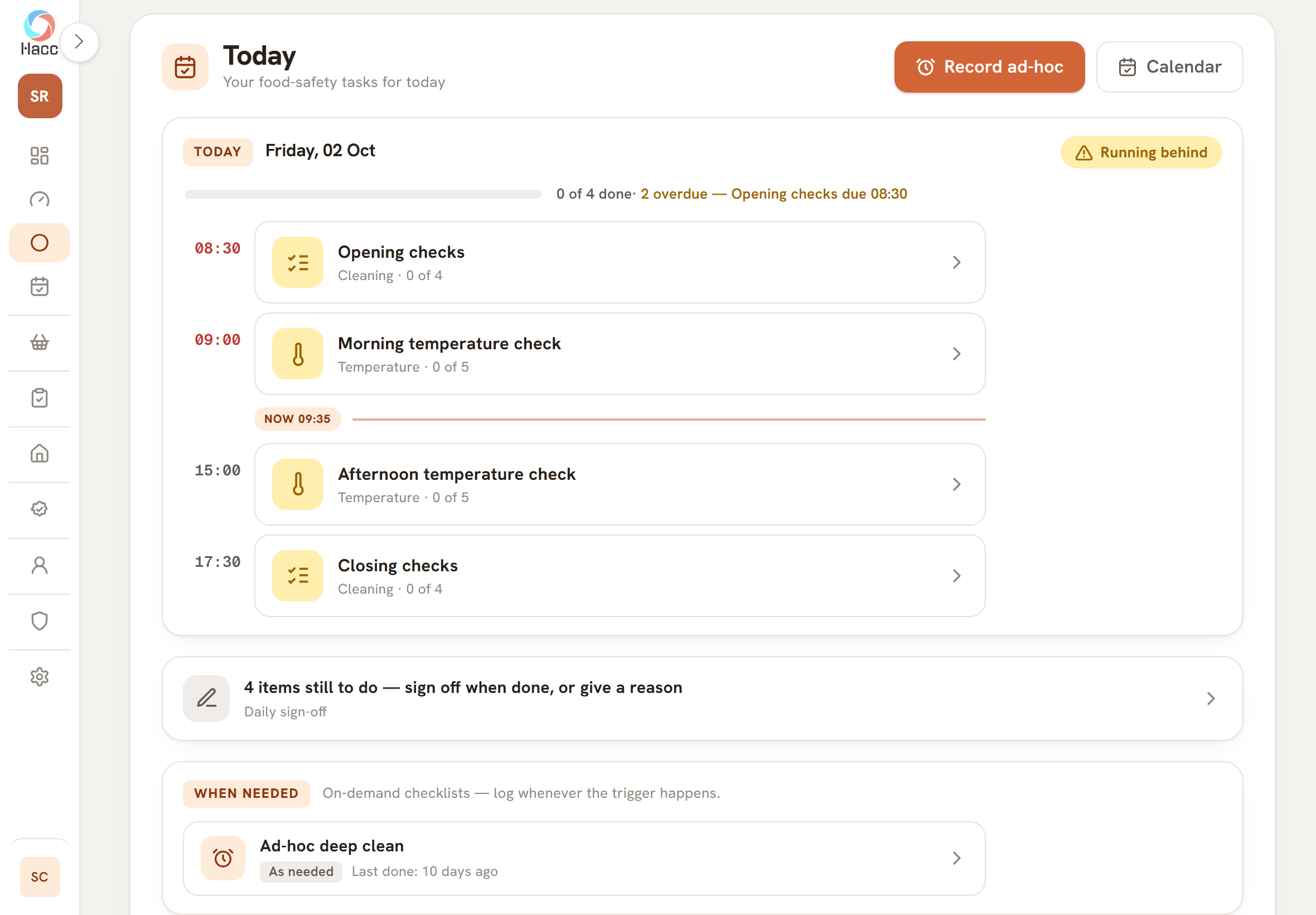
    The Today page lists the temperature checks and checklists due that day. Jobs with a set time run in time order: what is late sits above the "now" line and what is still to come sits below it. Tap a tile and you are on the right screen to record it.

    The Today page on a tablet, with "Record ad-hoc" and "Calendar" buttons. Under "Friday, 02 Oct" a label reads "Running behind" beside an empty progress bar and "0 of 4 done", with 2 overdue. Two tiles, "Opening checks" at 08:30 and "Morning temperature check" at 09:00, have their times in red above a line marked "NOW 09:35". Below the line are "Afternoon temperature check" at 15:00 and "Closing checks" at 17:30.
    Today at a demo shop that is running behind at 09:35: two jobs overdue above the "now" line, and two still to come below it.
  2. Take the temperatures

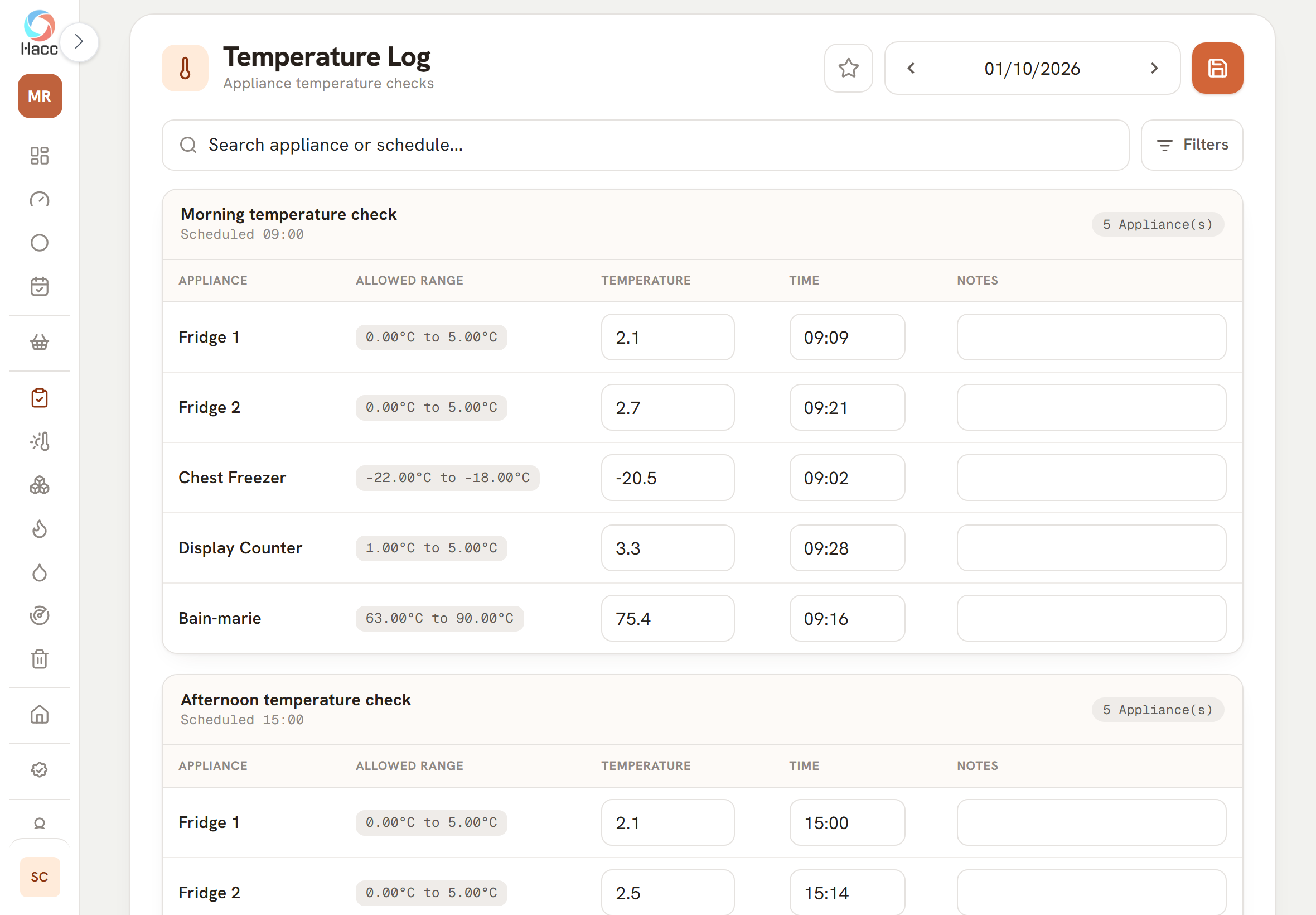
    Each fridge, freezer and counter is listed with its allowed range beside the box. Staff read the thermometer and type the figure in. One save stores every reading on the screen, with who entered it and when.

    Four rows of a temperature check under the column headings Appliance, Allowed Range, Temperature, Time and Notes. Fridge 1, allowed 0.00°C to 5.00°C, reads 2.1 at 09:09. Fridge 2, allowed 0.00°C to 5.00°C, reads 2.7 at 09:21. Chest Freezer, allowed -22.00°C to -18.00°C, reads -20.5 at 09:02. Display Counter, allowed 1.00°C to 5.00°C, reads 3.3 at 09:28. The notes boxes are empty.
    A morning check: each appliance with its allowed range, the reading and the time it was taken.
  3. A reading is out of range

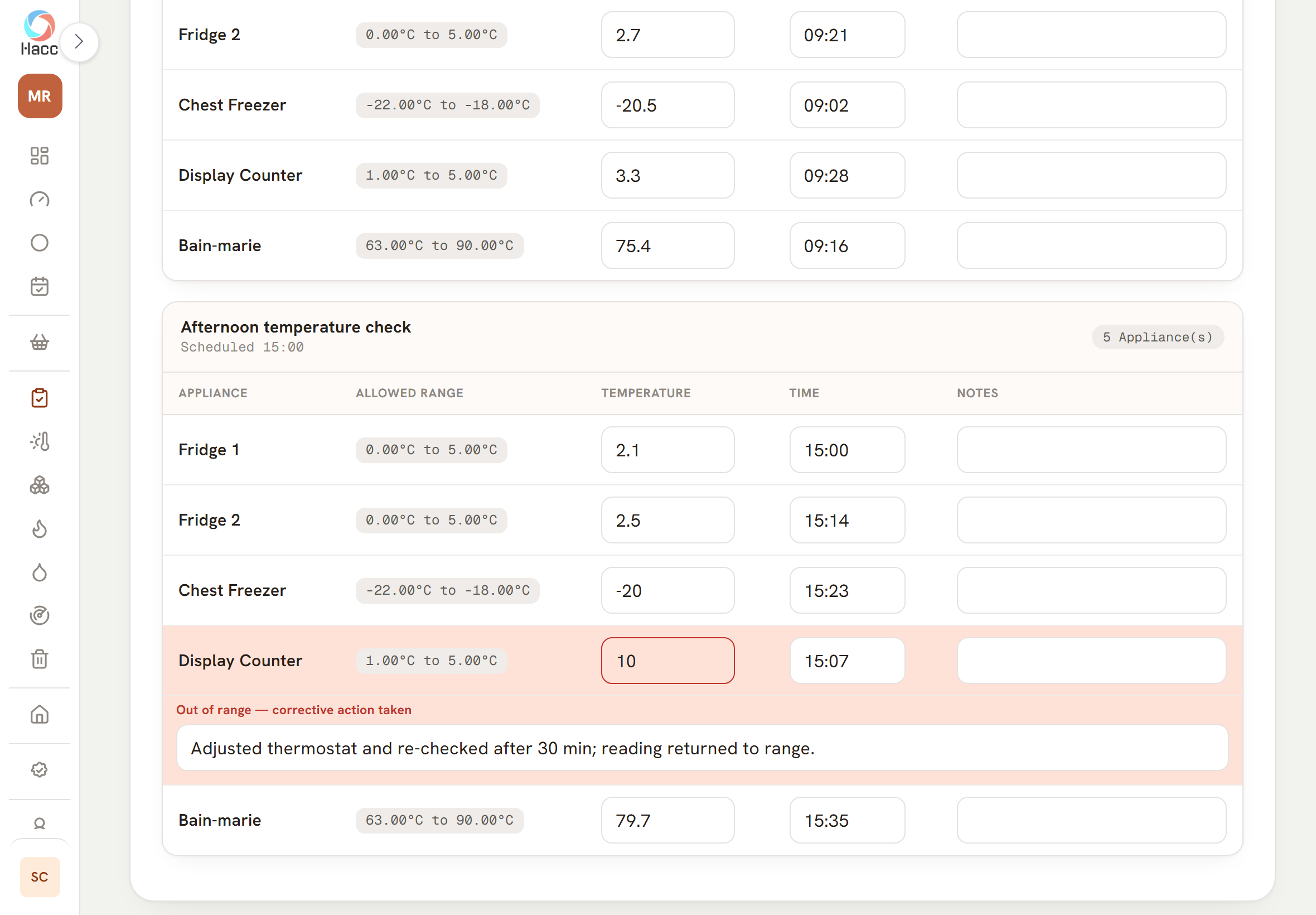
    Type a reading outside the range and the row turns red. A line opens underneath asking what you did about it. What you write is saved with the reading, so the problem and what was done about it sit together.

    The "Afternoon temperature check" card, scheduled 15:00, with the columns Appliance, Allowed Range, Temperature, Time and Notes. Fridge 1 reads 2.1 and Fridge 2 reads 2.5 against 0.00°C to 5.00°C. Chest Freezer reads -20 against -22.00°C to -18.00°C. The Display Counter row is tinted red: 10 against 1.00°C to 5.00°C at 15:07, with a red label for an out-of-range reading and the corrective action "Adjusted thermostat and re-checked after 30 min; reading returned to range."
    A display counter reading of 10°C against a range of 1°C to 5°C turns the row red, with the action taken written underneath.
  4. Tick the checklists

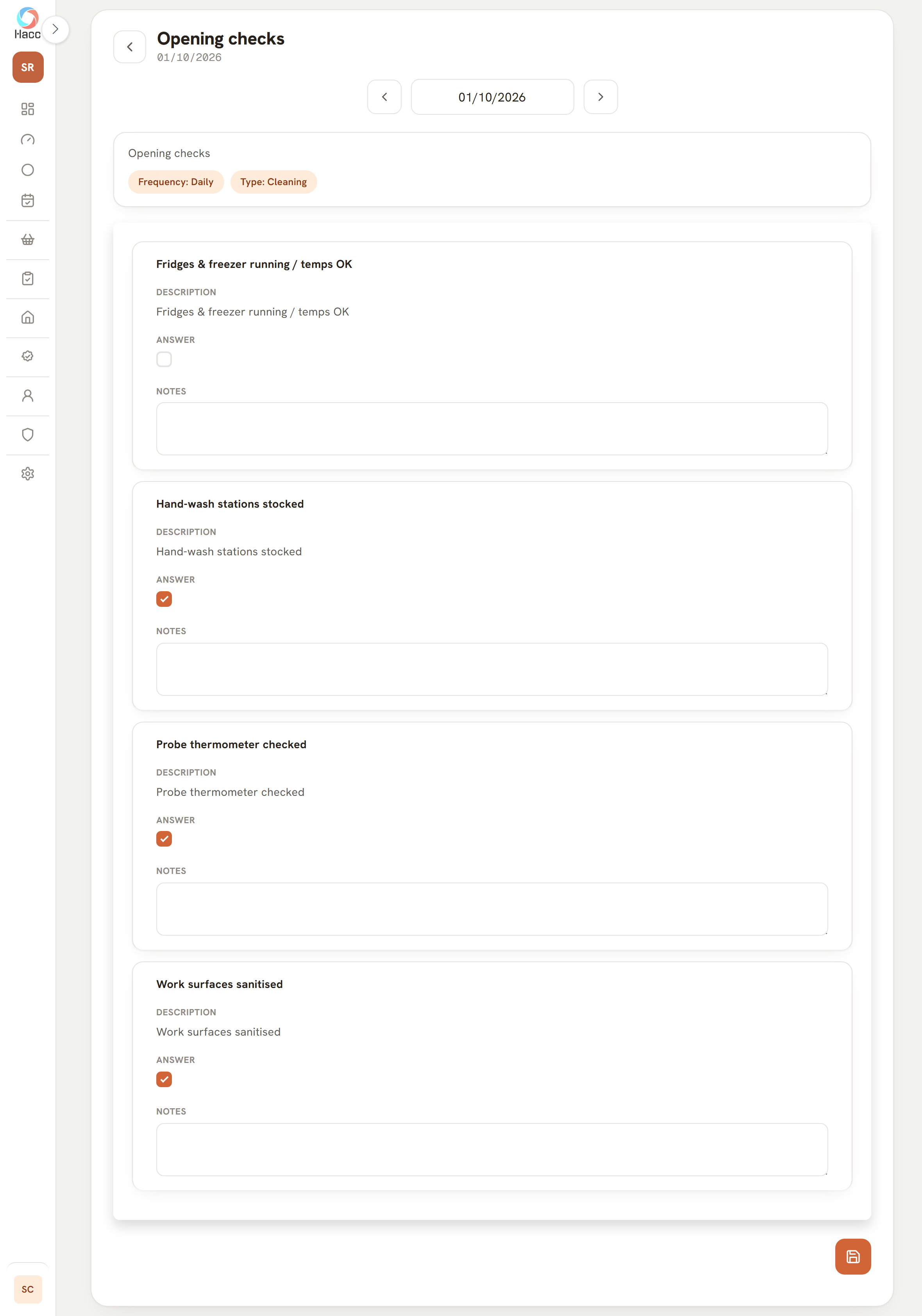
    Opening checks, closing checks and cleaning schedules are your own lists. Staff tick each item and add a note where one is needed. A checklist can be saved part done and finished later, and Today shows how far it has got.

    The "Opening checks" checklist for 01/10/2026, with chips reading "Frequency: Daily" and "Type: Cleaning". The first item, "Fridges & freezer running / temps OK", has an empty tick box and an empty notes box. The second, "Hand-wash stations stocked", is ticked.
    An opening checklist part way through: one item ticked, one still to do, and a notes box against each.
  5. Sign off the day

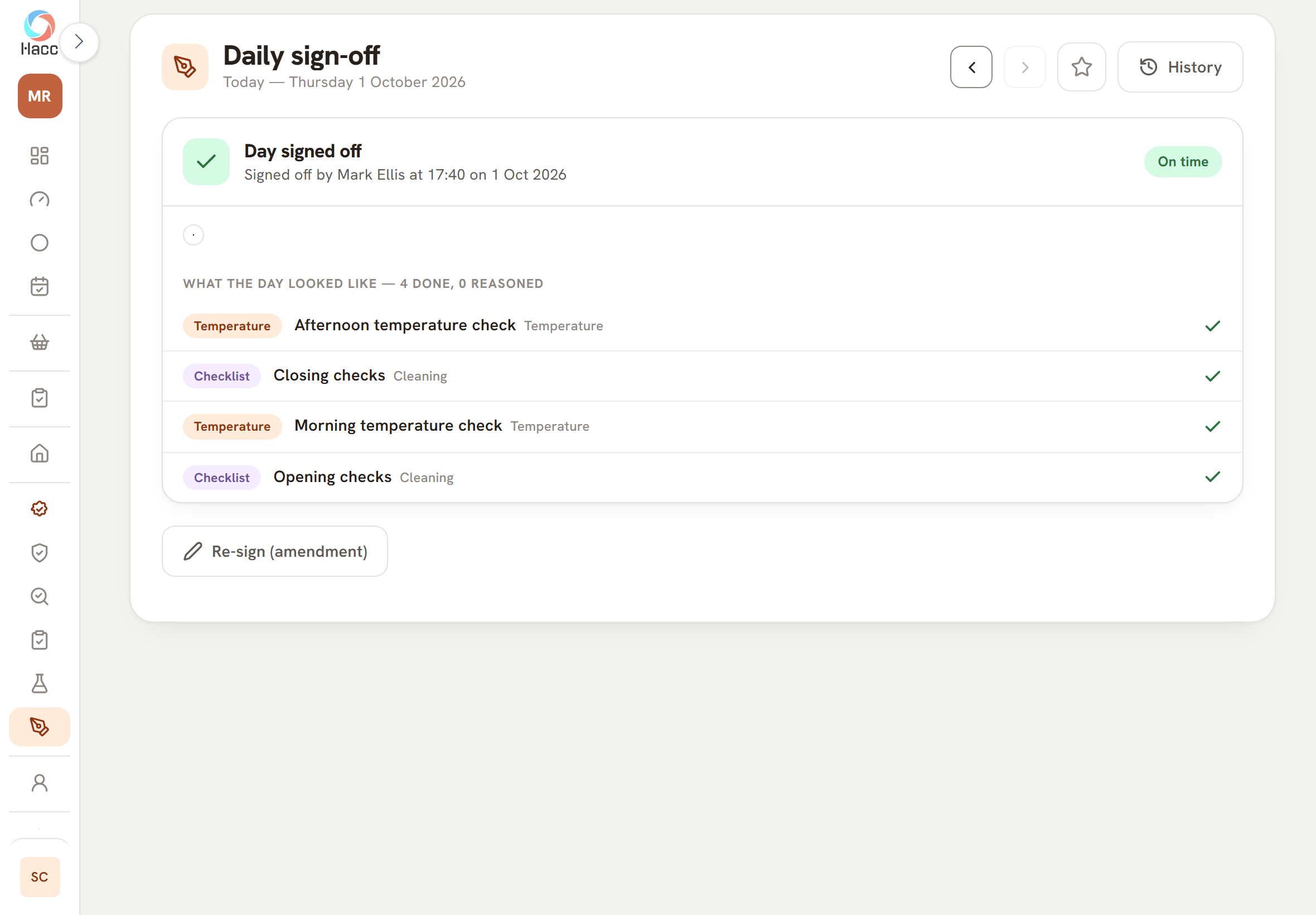
    At close, the sign-off screen lists what was done and what was not. Anything outstanding has to be finished or given a reason, such as "No stock" or "Equipment out of use". Then someone draws their signature on the screen.

    The Daily sign-off page for Thursday 1 October 2026. A card headed "Day signed off" gives the name of the person who signed and the time, with an "On time" label and a small signature mark beneath. Under a heading for what the day looked like, with 4 done and 0 reasoned, are four ticked rows: Afternoon temperature check, Closing checks, Morning temperature check and Opening checks. A "Re-sign (amendment)" button sits below.
    A signed day: who signed, when, and each check the day was made of.

See all the features of the working day

What it covers

The rest of the paperwork, in the same place

The working day is above. These are the other records a butcher's shop keeps, each with its own page in the app.

Cooking, cooling and holding records

Each cook has one record: the product, start and finish, and the core temperature against a 75°C minimum you can change on the record. Hot food on display has its probe readings logged, cold lines get a daily check sheet, and pork pie jelly has its own log.

  • Core temperature shown green or red against the minimum
  • Hot holding: 2 hours counted down from the first reading recorded below 63°C
  • Cold holding: each check marked green, amber or red
See all the features for cooking, cooling and holding
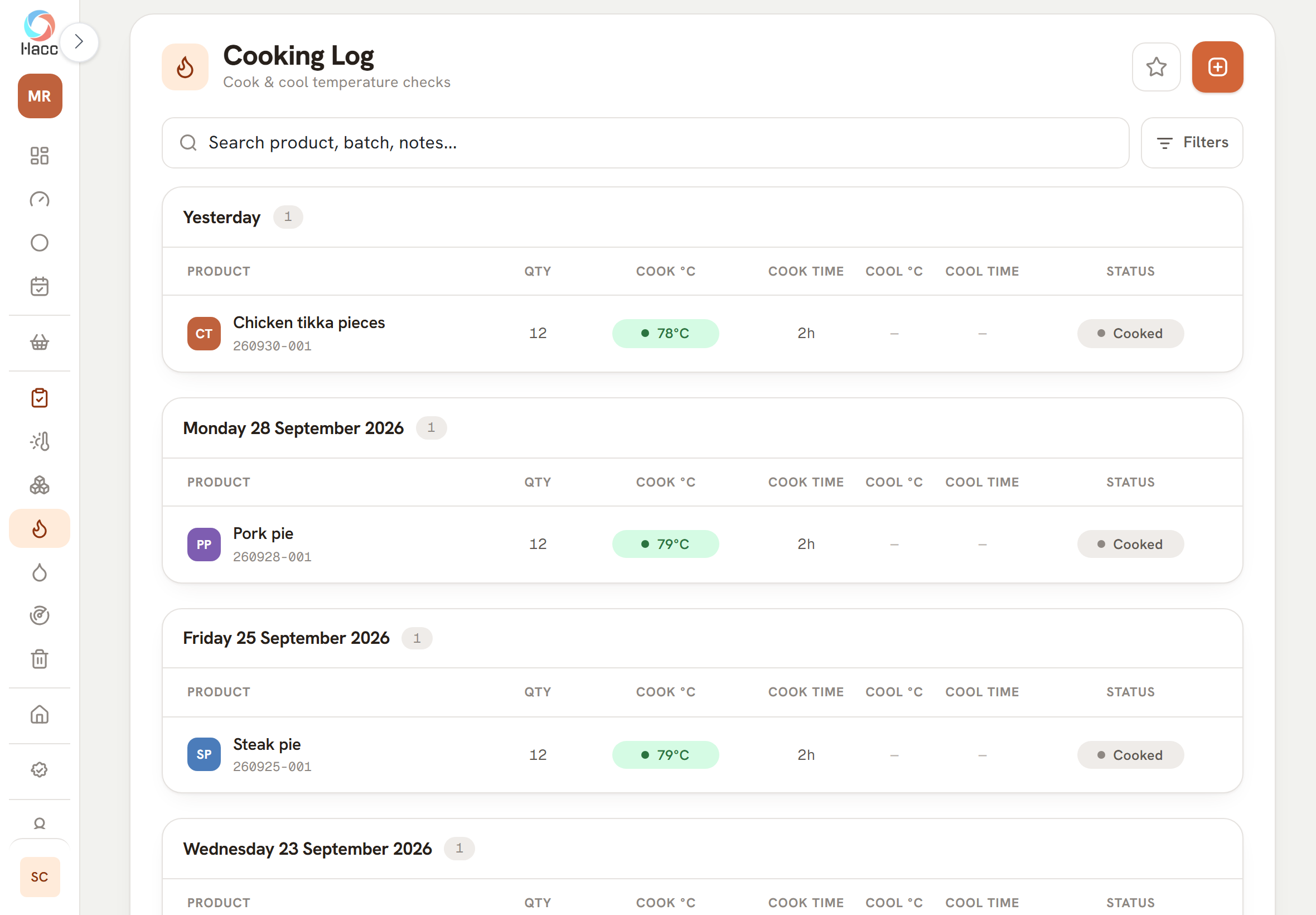
The Cooking Log screen with one card per day. Chicken tikka pieces at 78°C, pork pie at 79°C and steak pie at 79°C, each with a batch number, quantity 12, a green core temperature, a cook time of 2h and the status Cooked. A coloured badge beside each name shows the product's initials.
The Cooking Log groups cooks by day and shows each batch's core temperature in green when it met its minimum.

Batch numbers and use-by dates, worked out for you

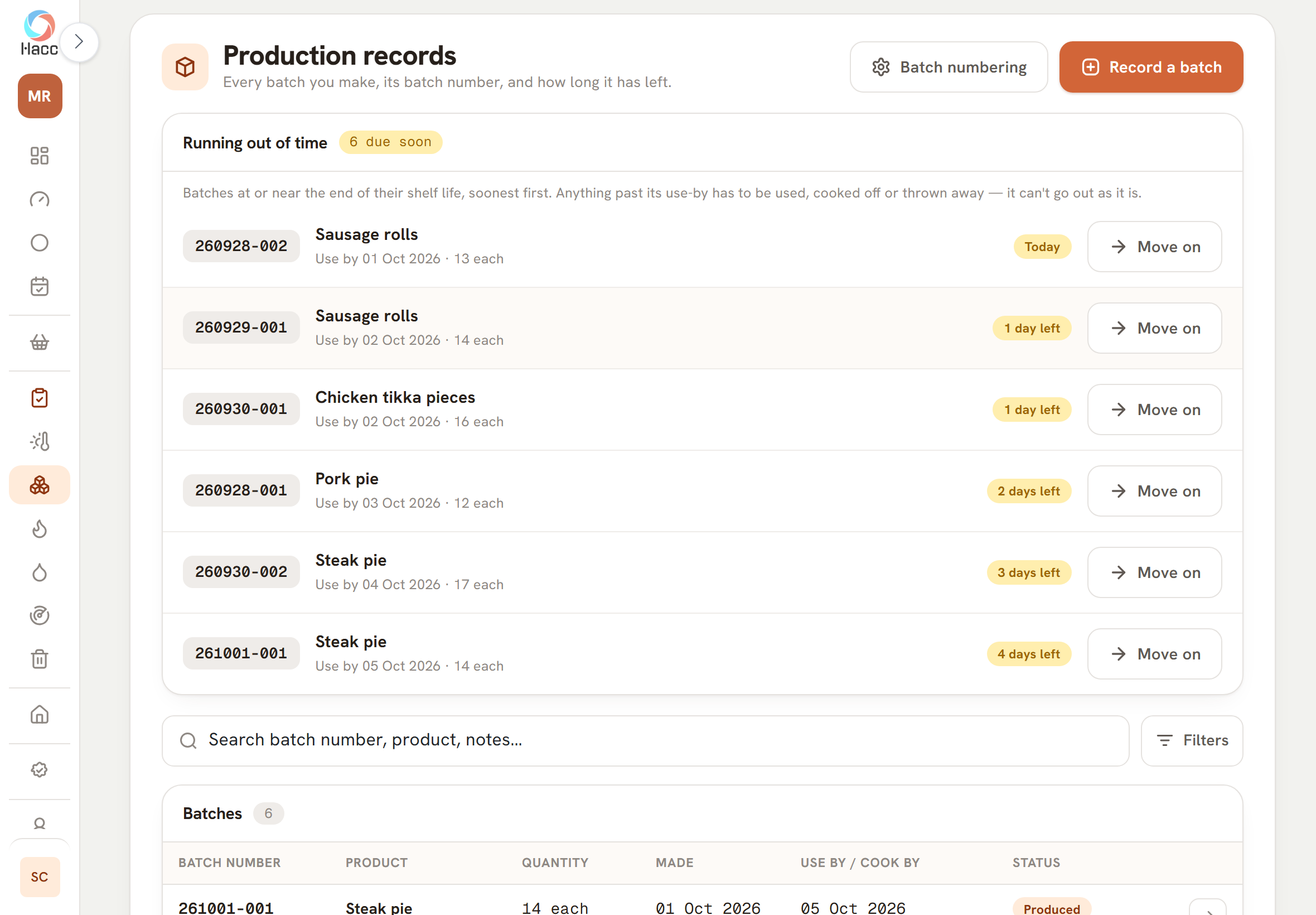
Record a batch and the app gives it the next batch number and works out its use-by date from the shelf life. Batches within 7 days of their date, or past it, sit at the top of the screen, soonest first, until someone marks them used, wasted or expired.

  • Batch numbers issued by the app, never typed
  • The days left beside each use-by date, such as "3 days left"
  • A separate counter board showing the days left on what is on display
See all the features for production and shelf life
The Production records screen. The "Running out of time" panel, marked 6 due soon, lists six batches with their batch numbers, soonest first: sausage rolls due Today, sausage rolls and chicken tikka pieces with 1 day left, pork pie with 2 days left, and two steak pie batches with 3 and 4 days left. Each row shows its use-by date and quantity and has a "Move on" button.
Batches close to their use-by date sit at the top of the Production screen, soonest first, each with its batch number and the days it has left.

Goods in, returns and wastage

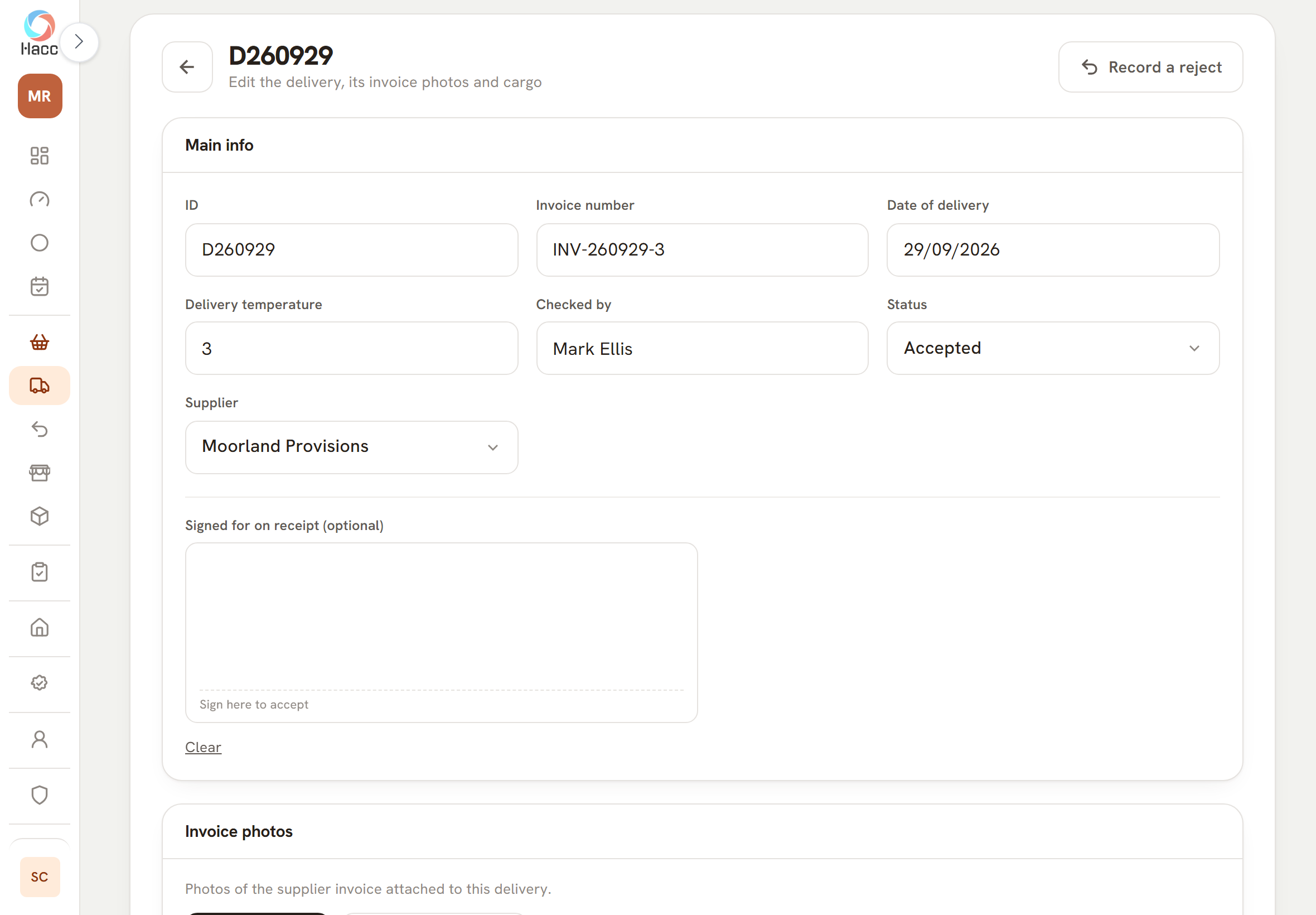
When a delivery arrives, staff pick the supplier, type the arrival temperature and who checked it, then add each product with its batch number and use-by date. Returns, rejects and complaints go in one list, and a daily wastage sheet shows what was thrown away and what it cost.

  • Photograph the invoice and sign for the goods on the screen
  • A return or reject will not save until you say what happened to the food
  • Wastage totalled at cost and at retail, for the day and the month so far
See all the features for goods in, returns and wastage
An opened delivery. The "Main info" card shows the delivery ID, an invoice number, the date of delivery 29/09/2026, a delivery temperature of 3, the name of the person who checked it, the status Accepted and the supplier. Below is an empty box labelled "Signed for on receipt (optional)". A "Record a reject" button is at the top right.
A delivery record holds the temperature on arrival, who checked it, the supplier and the status, with a box to sign for the goods on screen.

Pest control, COSHH, training and visitors

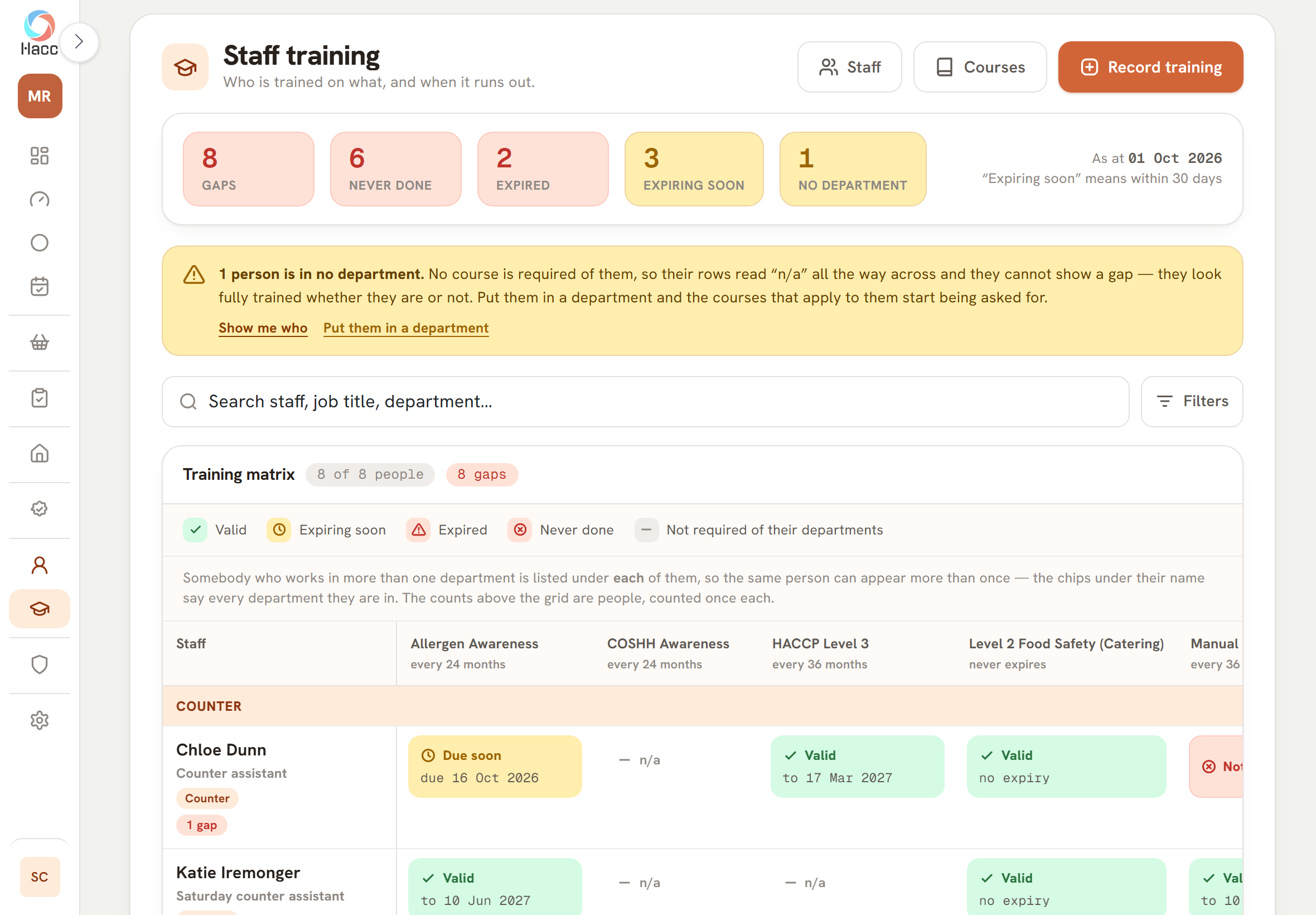
Four registers sit beside the daily records. Pest control visits and what the contractor recommended. A COSHH register with each chemical's hazards, PPE, dilution and safety data sheet. A training matrix showing who is trained and when it runs out. A visitor log that visitors can sign on screen.

  • Overdue recommendations and reviews are flagged on screen
  • Reports, data sheets and certificates attached as a PDF or a photo
  • Contractors and visitors can sign on the screen
See all the features for pest control, COSHH, training and visitors
The "Training matrix" card, showing "8 of 8 people" and "8 gaps", a key to the statuses Valid, Expiring soon, Expired, Never done and Not required, and columns for Allergen Awareness, COSHH Awareness, HACCP Level 3 and Level 2 Food Safety (Catering), each with how often it is renewed or "never expires", and a fifth column cut off at the right. Under a "Counter" band, a counter assistant's row reads "Due soon, due 16 Oct 2026", "n/a", "Valid to 17 Mar 2027" and "Valid, no expiry", with a "1 gap" label under the name.
The training matrix: each course with how often it is renewed, and one person's row showing what is valid and what is due soon.

When the inspector calls

A score for your record-keeping, and one page to show the inspector

Two pages do the work here. One tells you how complete your own records are. The other lays them out for an Environmental Health Officer (EHO).

Your record-keeping, out of 100

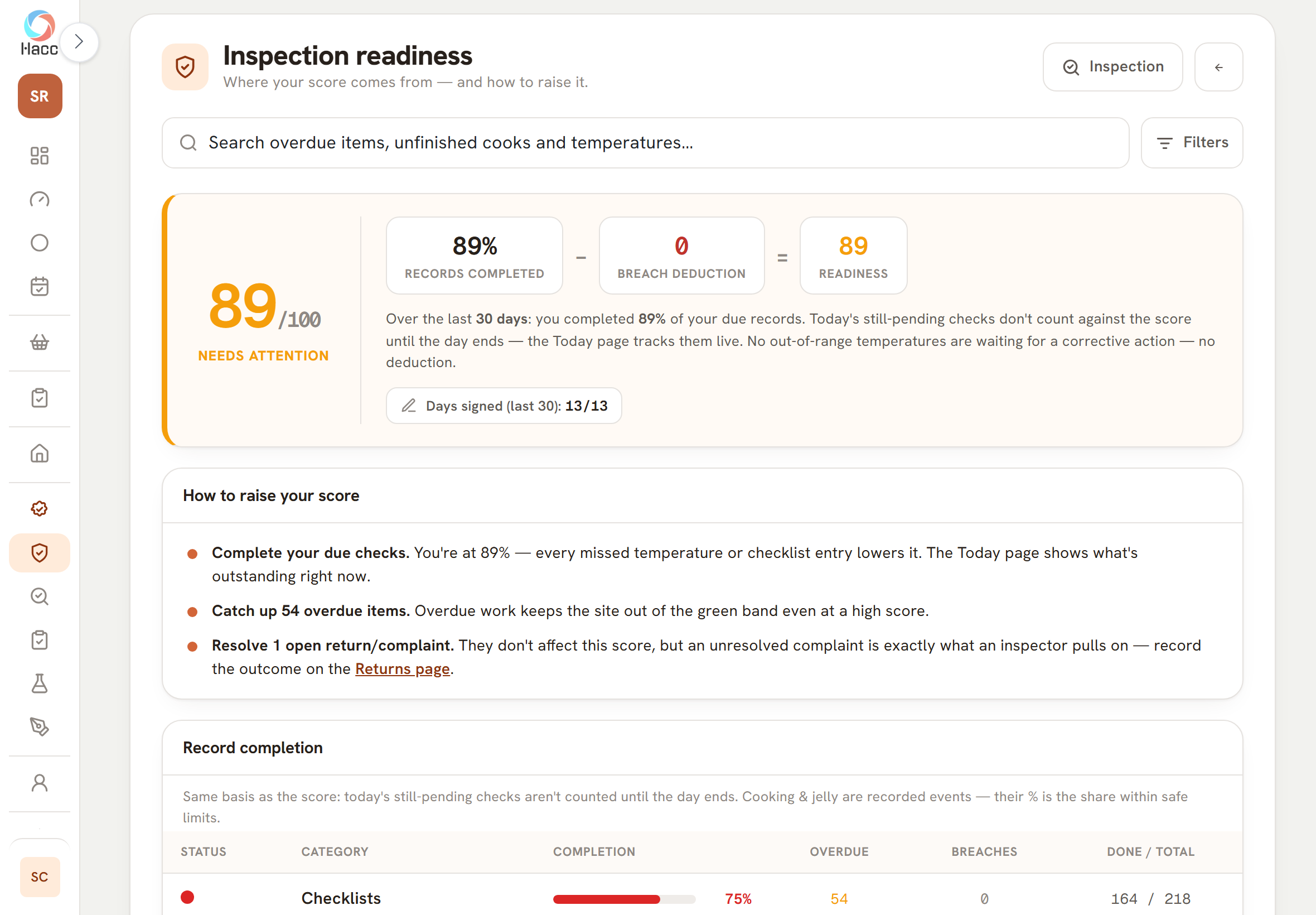
The Dashboard opens with a score out of 100. Tap it and the Readiness page shows the working as a sum: records completed, minus breach deduction, equals readiness.

It measures your own record-keeping in the app, and it is not a prediction of your Food Hygiene Rating.

  • The green band needs 90 or more, nothing overdue and no out-of-range reading still waiting for an action
  • "How to raise your score" is written from your shop's own numbers
  • Missed checks are listed, and a tap opens that day's record so it can be completed
A card showing 89 out of 100 in amber with the label "Needs attention". Beside it three boxes read "89% records completed", minus "0 breach deduction", equals "89 readiness", above a sentence explaining the sum for the last 30 days and a chip reading "Days signed (last 30): 13/13". Below it a card headed "How to raise your score" lists three points, which begin "Complete your due checks", "Catch up 54 overdue items" and "Resolve 1 open return/complaint".
A demo shop that left its checklists part done scores 89 out of 100 for record-keeping, with the sum behind the number and what to do next.
  • Records completed is the share of your scheduled temperature checks and checklist items that were done, out of those due in the period.
  • Today's checks that are still to do are left out until the day ends.
  • The breach deduction takes points off for each fridge or freezer reading outside its range that has no corrective action written against it, up to a cap.
  • Write down what was done and the deduction goes. The reading stays on the record.
  • The score can also take daily sign-off into account, and the foot of the page prints the rule in force.
  • The Readiness page covers the last 7, 30 or 90 days. Once you have recorded an EHO visit the Dashboard counts from that visit unless you change it, so the two numbers can differ.

What was kept, what went wrong and what was done

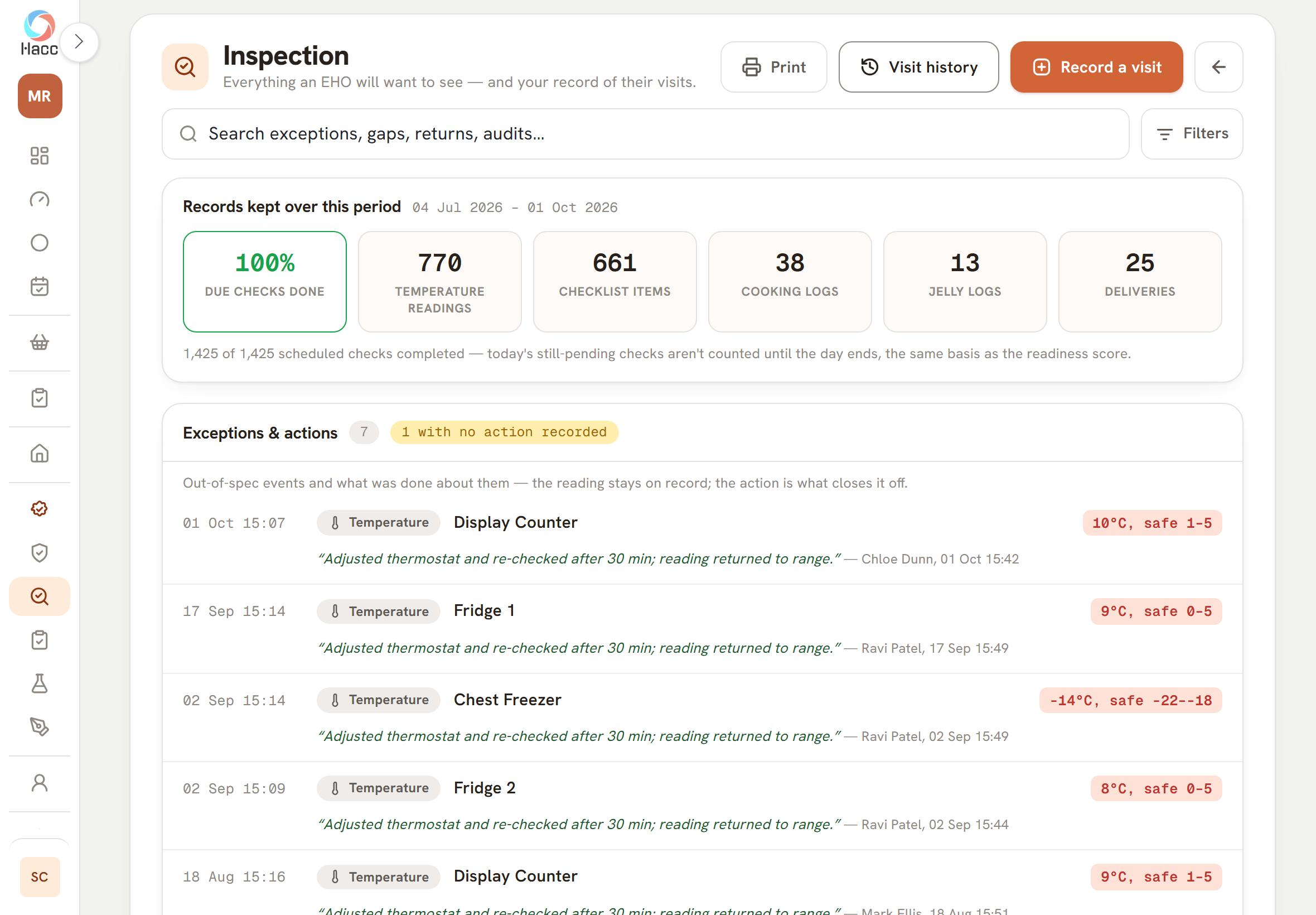
When an EHO asks to see your records, open the Inspection page. It covers the time since the last visit you recorded, up to a year, or the last 90 days if you have not recorded one. It shows how much was recorded, the readings that were out of range with what was done about them, the scheduled records that were missed, returns and complaints, your own audits and the actions agreed at the last visit. One button prints it through your browser.

  • Missed records are listed, not hidden
  • After a visit, record who came, the rating given and what you agreed, then tick each action off when it is done
  • Pest control, COSHH, training and the visitor log are separate pages you show on screen

See all the features for inspections

Part of the Inspection page. A card headed "Records kept over this period", 04 Jul 2026 to 01 Oct 2026, shows six figures: 100% due checks done, 770 temperature readings, 661 checklist items, 38 cooking logs, 13 jelly logs and 25 deliveries. Below it, "Exceptions & actions" shows a count of 7 and a label reading "1 with no action recorded", then four out-of-range readings: Display Counter at 10°C (safe 1 to 5), Fridge 1 at 9°C (safe 0 to 5), Chest Freezer at -14°C (safe -22 to -18) and Fridge 2 at 8°C (safe 0 to 5). Under each is the action taken in quotes, followed by a name, a date and a time.
The Inspection page: what was recorded over the period, then four out-of-range readings, each with the action taken, who recorded it and when.

More than one shop

Every shop's record-keeping on one page

If you run more than one shop, the Overview lists them all, with the shop whose records most need attention at the top. Each shop gets a record-keeping score out of 100, worked out the same way as on its own dashboard, and the group figure is the average. Tap a shop and the app switches you into it, on its own dashboard.

  • Checks due, done and overdue across all your shops
  • One sign-in for someone who works at several shops, with a role at each
  • New shops and head-office access are set up for you by Conexio
See all the features for more than one shop
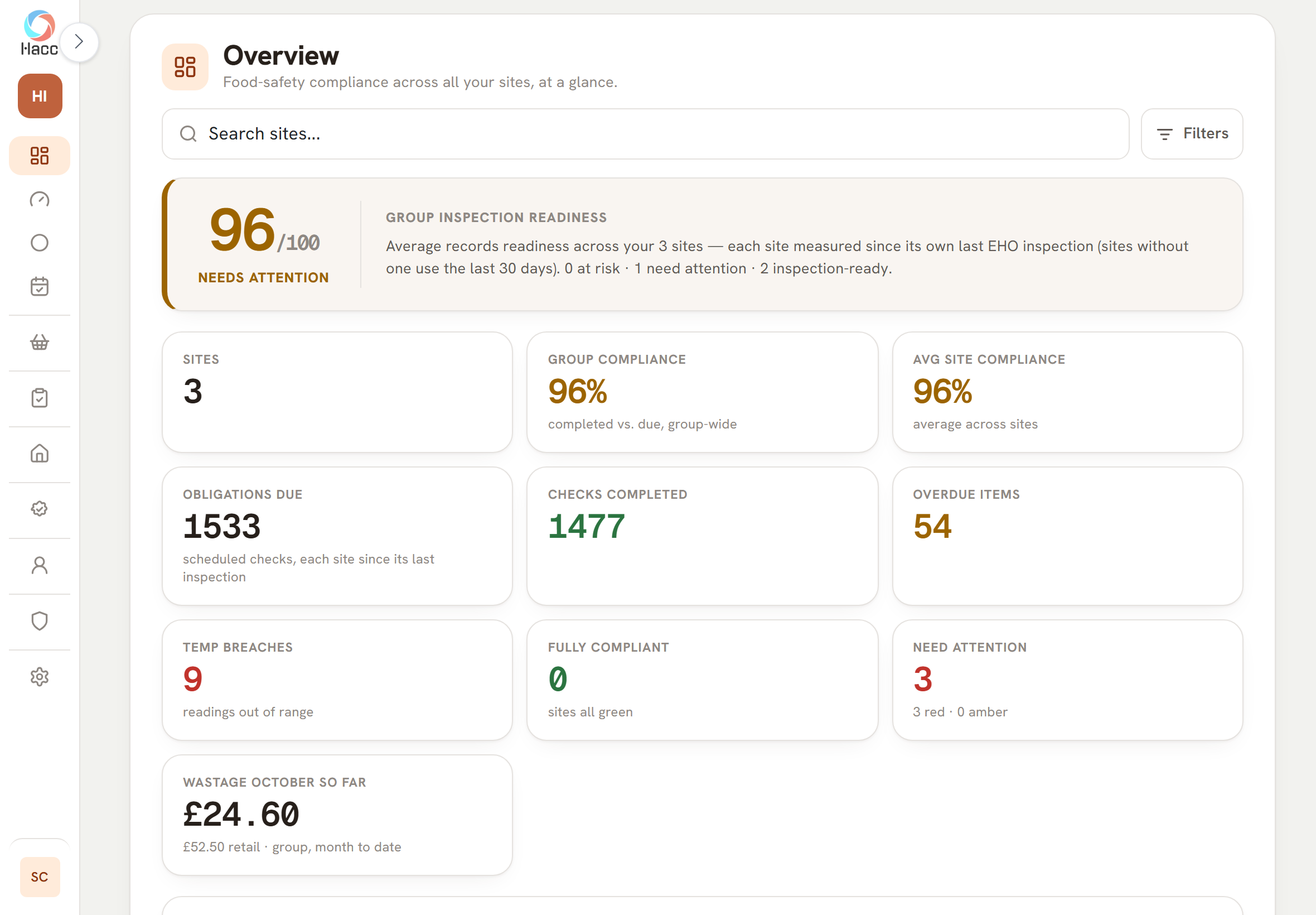
The Overview page on a tablet, with a "Search sites..." box and a Filters button. A band headed "Group inspection readiness" shows 96 out of 100 and the label "Needs attention" in amber. Its text says the figure is the average across 3 sites and ends "0 at risk · 1 need attention · 2 inspection-ready." Six cards follow: Sites 3, Group compliance 96%, Avg site compliance 96%, Obligations due 1533, Checks completed 1477 and Overdue items 54.
Three demo shops on one page: a record-keeping score for the group, with the checks due, done and overdue across all three.
  • A checklist does not have to be typed in again at each shop. A manager can write it in one shop and copy it to the other shops they manage.
  • Each shop gets its own copy, so a later change to one does not change the others.
  • When we set up a group, we can also copy one shop's fridges and freezers, temperature checks and checklists to the rest.

Getting started

We set your shop up from the paper sheets you keep now

You do not set hacc.app up yourself. A member of our team builds your shop from the records you already keep, and goes through it with you before anything is switched on.

  1. Send us your sheets

    Photos or spreadsheets of what you keep now: fridge and freezer logs, cleaning schedules, opening and closing checks, supplier lists, the COSHH register and training records.

  2. We build your shop

    Your opening hours, each fridge and freezer with its own range, your checklists, suppliers, products, chemicals, staff and training records. Where a sheet is unclear, we check rather than guess. While we work the shop is switched off, so no checks are asked for and no invitations go out.

  3. We go through it with you, then switch it on

    We read the whole set-up back to you. When you are ready to start, we switch the shop on.

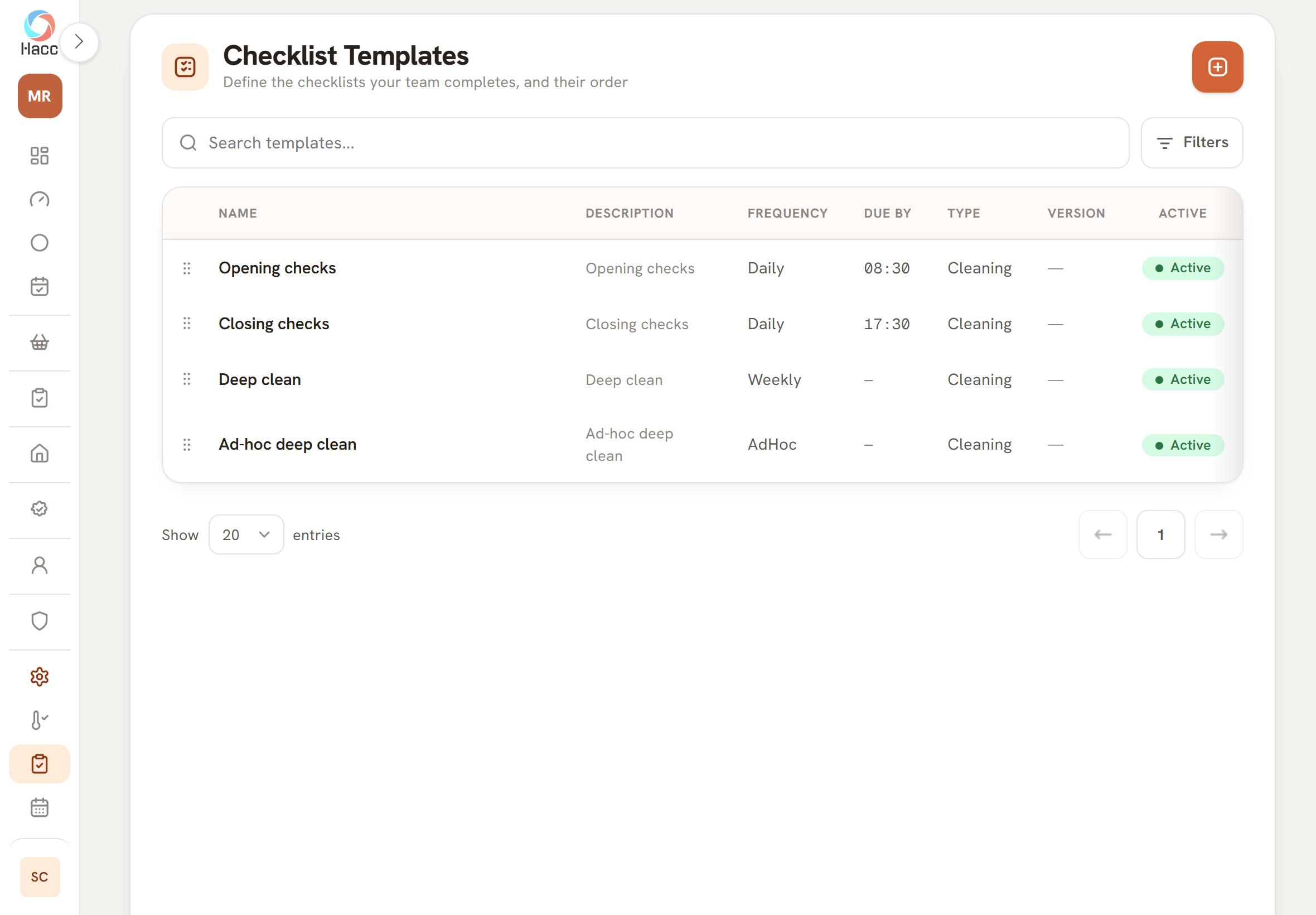
The Checklist Templates page on a tablet, with a search box, a Filters button and an add button. A table with the columns Name, Description, Frequency, Due by, Type, Version and Active lists four checklists: "Opening checks", Daily, due by 08:30. "Closing checks", Daily, due by 17:30. "Deep clean", Weekly. "Ad-hoc deep clean", with the frequency shown as "AdHoc". All four are of type Cleaning and marked "Active", and each has a drag handle at the left.
A demo shop's checklists as they sit under Settings, where a manager can change them after set-up.

What you need to do

  • Send the sheets.
  • Tell us who will sign in, with an email address for each person, and who is a manager.
  • Go through the set-up with us before it is switched on, and tell us anything we have got wrong.
  • Once the shop is on, upload your safety data sheets and training certificates, and add closed days such as bank holidays. Your manager does these in the app.

What happens on the day you start

  • The day's checks appear, so staff are asked for them from the first day.
  • Your sign-off record and your record-keeping score begin that day. No missed checks are carried over from the set-up days.
  • Everyone who will sign in is emailed an invitation and chooses their own password.
  • Old readings are not brought across. Your shop starts clean.

See it first, with 90 days of records already in it

Ask for a demo and we build you a private sample butcher's shop holding 90 days of invented records: temperature checks, checklists, deliveries, cooking, wastage and daily sign-offs. We show you round it, and you can sign in and use it yourself. It has out-of-range readings and an unsigned day left in, so you can see how the app shows them. If you go ahead, your own shop is set up fresh from your own sheets.

  • One shop, or a head office with three
  • Out-of-range readings left in, with the corrective action where one was taken
  • Sample data only: nothing in it is real
Request a demo
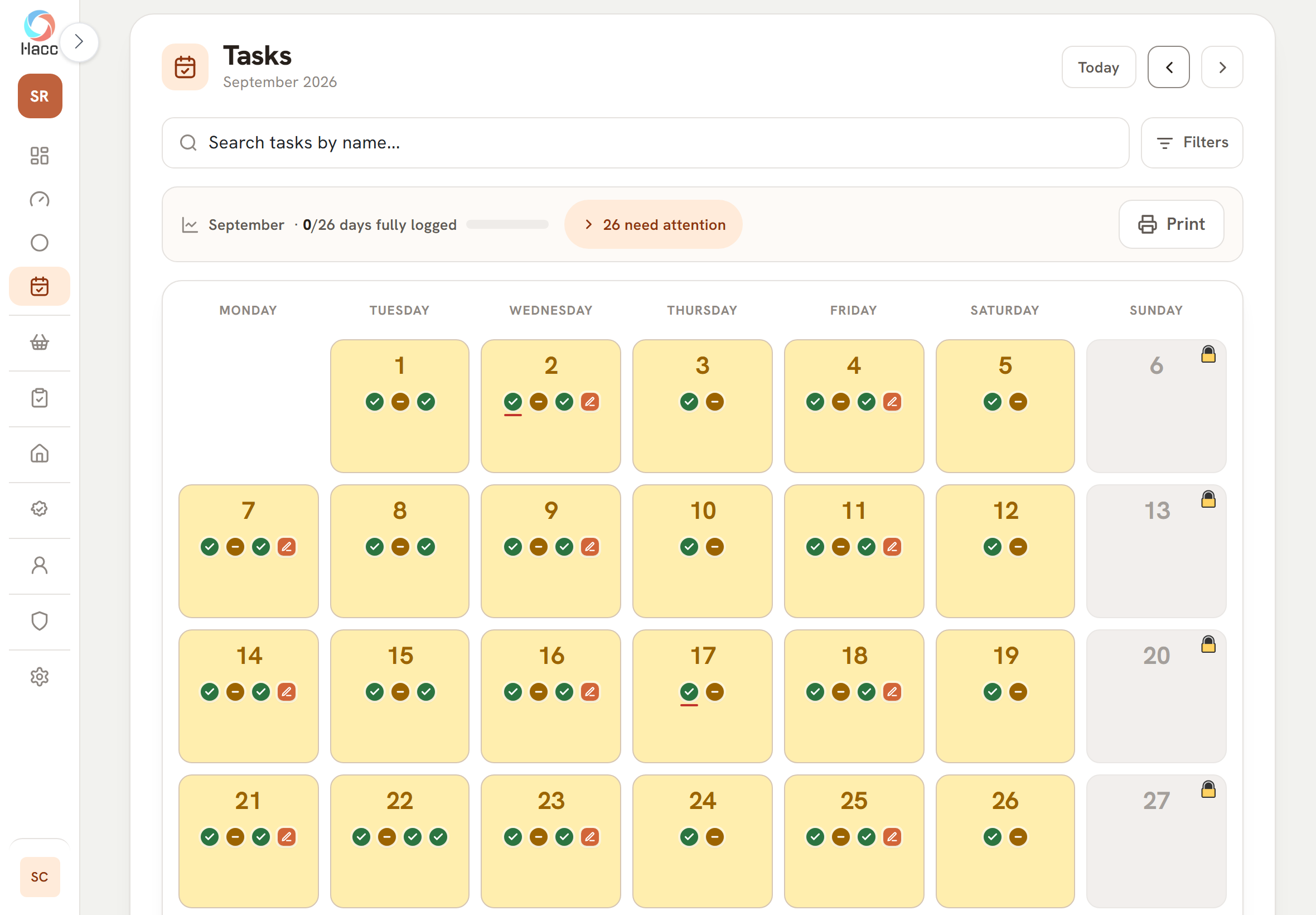
The Tasks calendar for September 2026, Monday to Sunday, showing the 1st to the 27th. Every working day is tinted amber and carries a green tick and an amber dash, most with a second green tick, and about half with a small pen mark. On the 2nd and the 17th the first tick is underlined in red. Sundays are grey with a padlock.
Four weeks of invented records at a demo shop that left its checklists part done: temperatures ticked, checklists dashed, a pen mark on the days that were signed off, and Sundays closed.

See how set-up works

Questions

Before you ask for a demo

What does it cost?

We do not publish a price. Talk to us. Put the number of shops on the demo form and we will tell you what it would cost for your business.

What does it run on?

A web browser, on a tablet or a computer. There is nothing to install and no app to download from an app store. It needs an internet connection and does not work without one. On a touch screen the tick-boxes and the buttons on each row are made larger, and signatures are drawn on an on-screen pad.

Who sets it up?

We do. You send photos or spreadsheets of the records you keep now, and a member of our team builds your shop from them: opening hours, fridges and freezers with their ranges, checklists, suppliers, products, COSHH chemicals and training records. We go through it with you before it is switched on. Afterwards your manager can change it in the app.

Can you bring our old paper records across?

No. Past readings, deliveries and other records are not imported. Your shop starts clean on the day it is switched on. What we carry across is the set-up: your appliances, checklists, suppliers, products, chemicals, staff and who has passed which training course. Your allergen matrix stays on paper, because the app has no place for one.

Does every member of staff need their own login?

Each person who records in the app has their own sign-in: their own email address and a password they choose. A record is stamped with whoever was signed in when it was made. People are invited by email, by us when your shop is switched on or by your manager afterwards, and your manager decides what each role can see and change. Staff who never use the app do not need a login. They can still be on the training matrix.

Does it take the fridge temperatures for me?

No. A member of staff reads the thermometer and types the figure in. There are no sensors or wireless probes. What the app adds is the allowed range beside every box, a red row when a reading is outside it, and a prompt to record what was done.

Does the score tell me what Food Hygiene Rating I will get?

No. The score measures your own record-keeping in the app: the share of due temperature checks and checklist items that were done, less points for out-of-range fridge and freezer readings with no action written down. It can also take daily sign-off into account. The page itself calls it a self-check on your records, not a prediction of your official Food Hygiene Rating.

If someone changes a record afterwards, will I know?

A manager can. A change to a saved reading, checklist answer or delivery goes into the shop's audit log with who made it and when, and the app puts a badge on changes worth a second look, such as a failed reading changed to a passing one. A manager reads the log on the Audit page.

Where are our records kept?

The app and its database run in Microsoft Azure's UK South region, and the app is served over an encrypted connection. You can print the Inspection page and a month of the Tasks calendar through your browser, and open or download again the documents you attached.

Request a demo

Look round a shop that is already set up

A person at Conexio reads your request and replies by email. We then build your demo shop, holding 90 days of invented records, and show you round it.

How many shops?

Or email sales@conexiosoftware.com

How we use these details is in our privacy policy.