Features

What hacc.app does

This page goes through hacc.app one part at a time, with pictures of the real screens and an invented shop's records. Each section says what the app does and what your shop gets from it.

Request a demo

Part 1

The working day

Today, the Tasks calendar, temperature checks, checklists and the daily sign-off.

Today: the day's jobs in time order

One page shows your staff what is overdue, what is next and what is done.

  • Each temperature check and checklist due today has its own tile, and the ones with a due time are listed in time order.
  • If a reading taken today is out of range, a red banner names the appliance, the reading and its range.
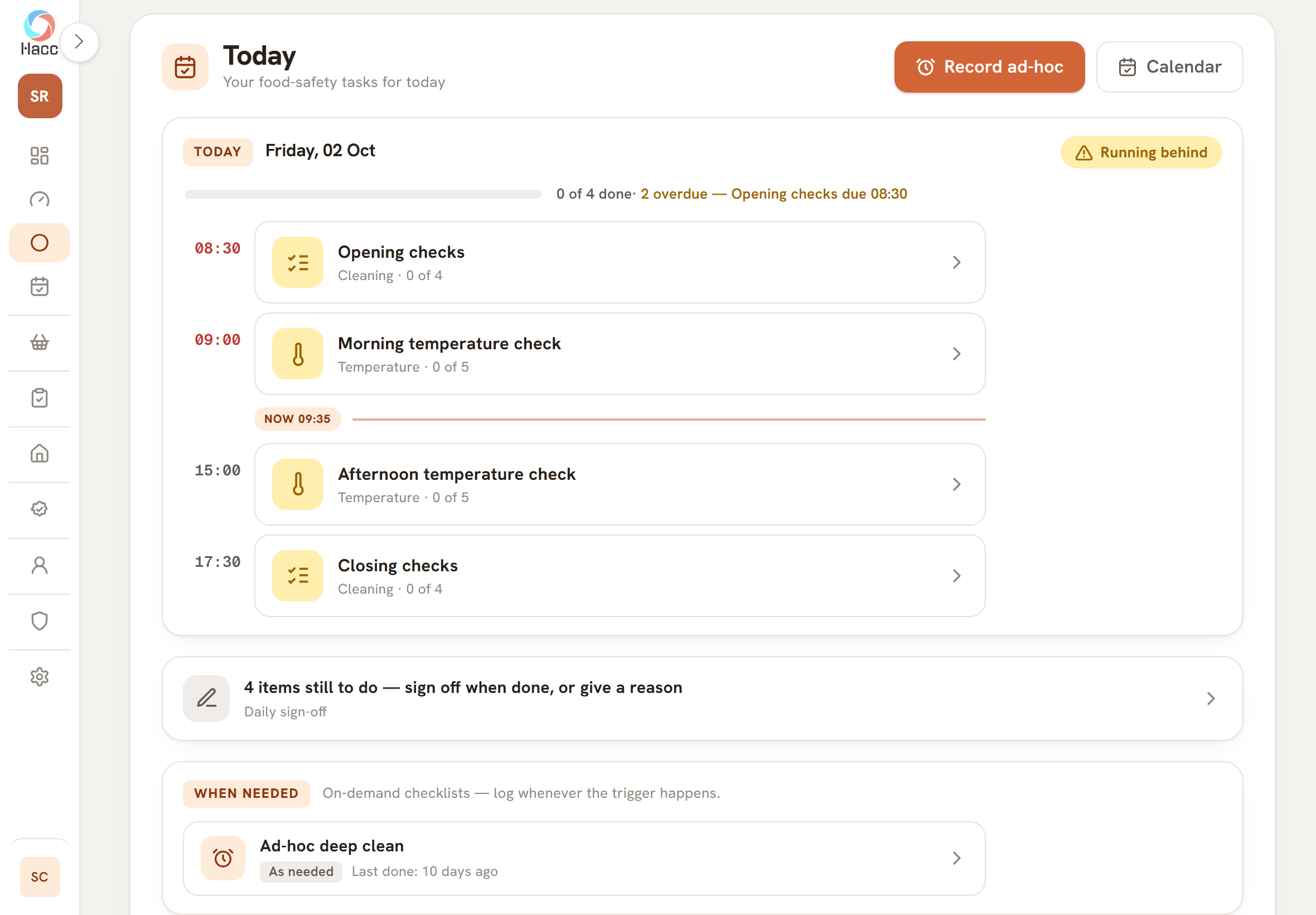
The Today page. Under "Friday, 02 Oct" a label reads "Running behind" beside an empty progress bar and "0 of 4 done", with 2 overdue. "Opening checks" at 08:30 and "Morning temperature check" at 09:00 have their times in red above a line marked "NOW 09:35". "Afternoon temperature check" at 15:00 and "Closing checks" at 17:30 sit below it. Underneath, a band reads "4 items still to do" for the daily sign-off, and a "When needed" band lists "Ad-hoc deep clean", "As needed", "Last done: 10 days ago".
The Today page: the day's checks in time order, how many are done, the sign-off band and the after-use checklists underneath.

Tasks: a month of record-keeping on one calendar

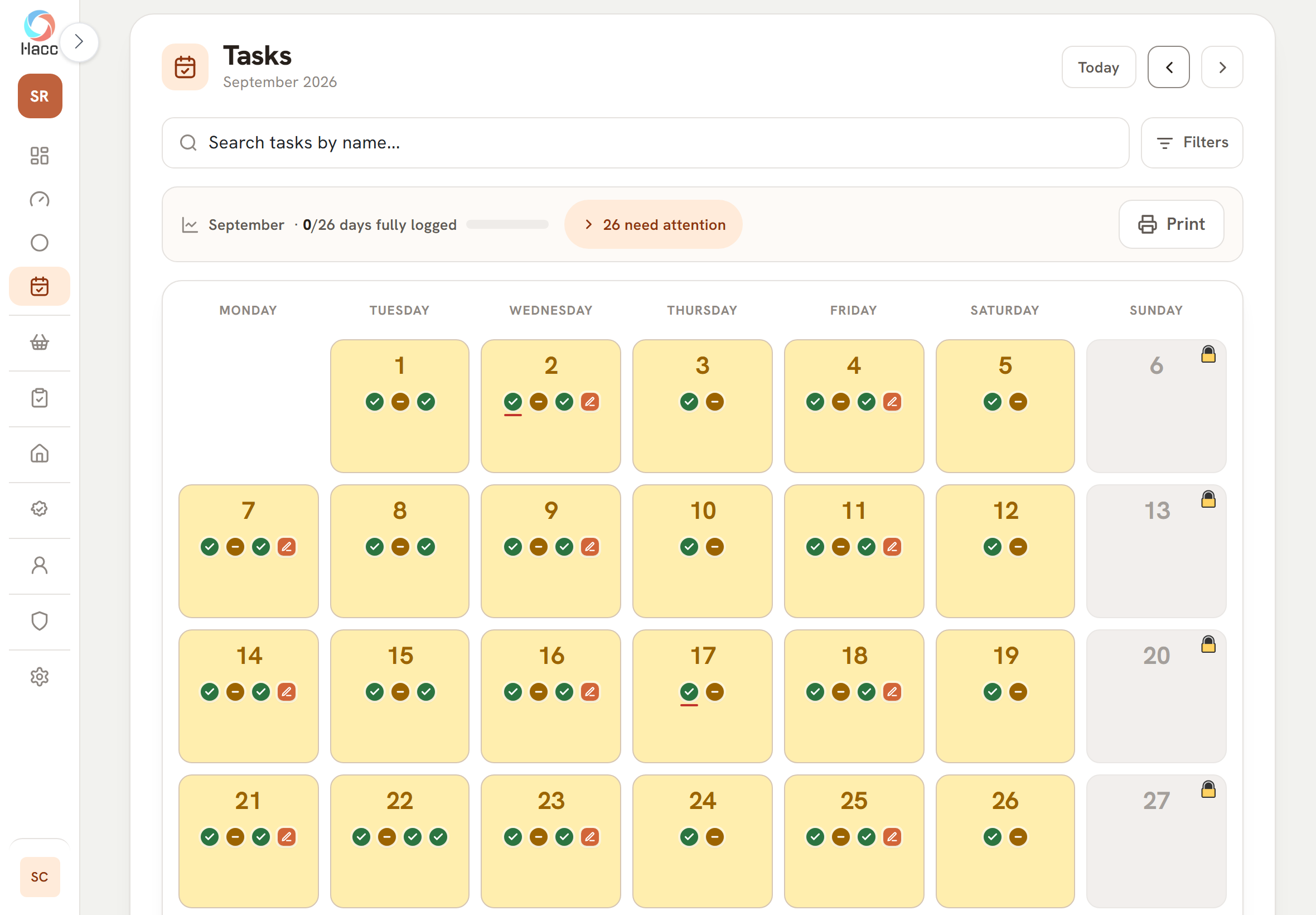
A month calendar shows which days were fully logged, which were part done and which were missed.

  • Each day carries one mark for each kind of record it had: temperatures, checklists, cooking logs and jelly logs. A tick means "All done", a dash "Partly", an exclamation mark "Missed".
  • Tap any day to see its list. Rows for today or an earlier day open the recording screen for that date, so a missed check can be filled in afterwards.
  • "Print" prints the month as a table.
The Tasks calendar for September 2026, Monday to Sunday, showing the 1st to the 27th. Every working day is tinted amber and carries a green tick and an amber dash, most with a second green tick, and about half with a small pen mark. On the 2nd and the 17th the first tick is underlined in red. Sundays are grey with a padlock.
September at a demo shop that left its checklists part done: temperatures ticked, checklists dashed, a pen mark on the days that were signed off, and Sundays closed.

Temperature checks: every reading beside its allowed range

Staff type each fridge, freezer and counter reading into one screen that shows the allowed range next to the box.

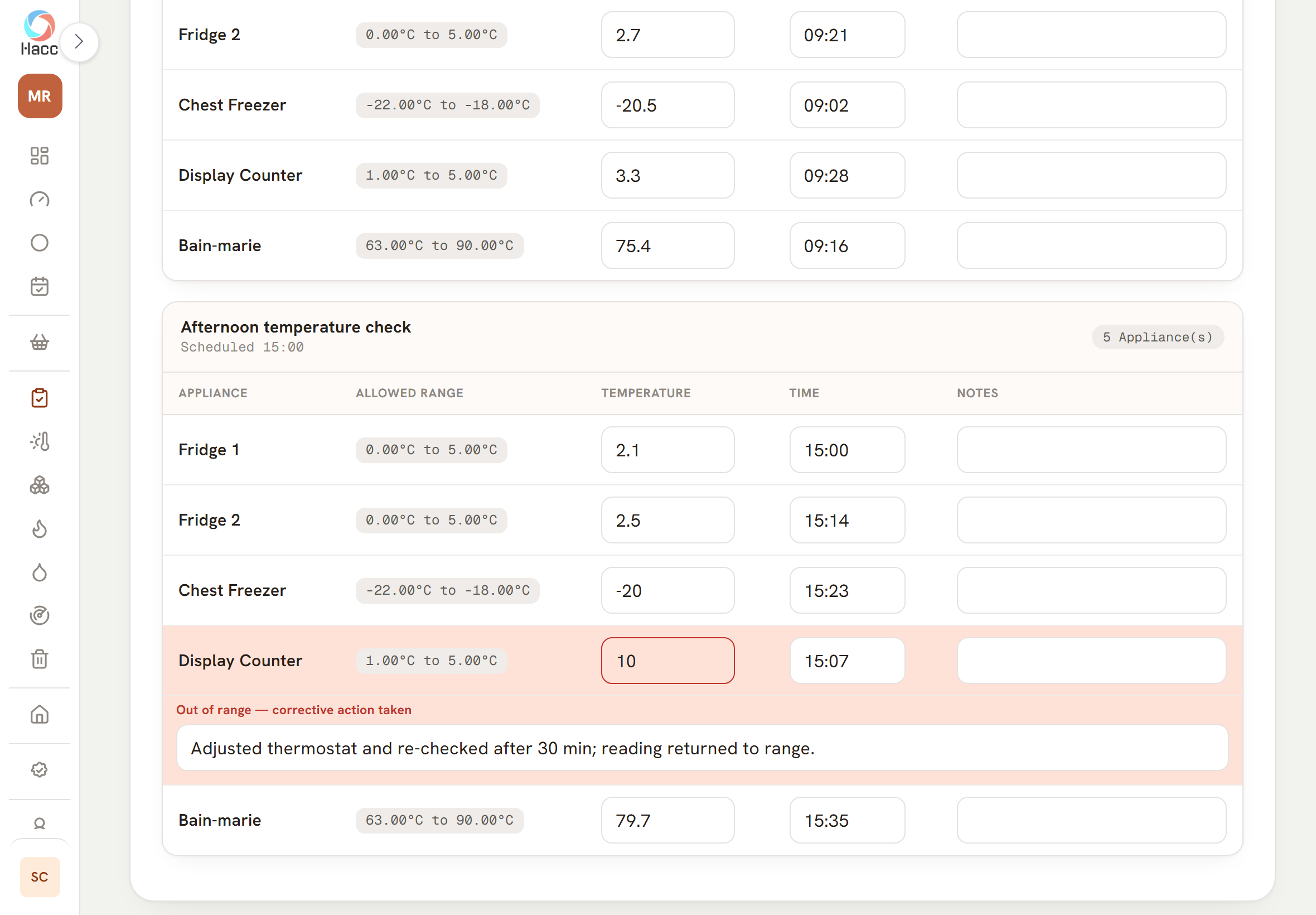
  • Type a reading outside the range and the row turns red straight away. A line opens under it for the corrective action.
  • One save stores every reading on the screen, with who entered it and when.
The "Afternoon temperature check" card, scheduled 15:00, with the columns Appliance, Allowed Range, Temperature, Time and Notes. Fridge 1 reads 2.1 and Fridge 2 reads 2.5 against 0.00°C to 5.00°C. Chest Freezer reads -20 against -22.00°C to -18.00°C. The Display Counter row is tinted red: 10 against 1.00°C to 5.00°C at 15:07, with a red label for an out-of-range reading and the corrective action "Adjusted thermostat and re-checked after 30 min; reading returned to range."
A display counter reading of 10°C against a range of 1°C to 5°C turns the row red, with the action taken written underneath.

Checklists written for your shop

Opening checks, closing checks, cleaning schedules and deep cleans come from your own lists and fall due when you say.

  • A checklist can be daily, weekly, monthly, every three months, every six months, every so many days, or on demand.
  • A checklist can be saved part done and finished later. Today shows how far it has got.
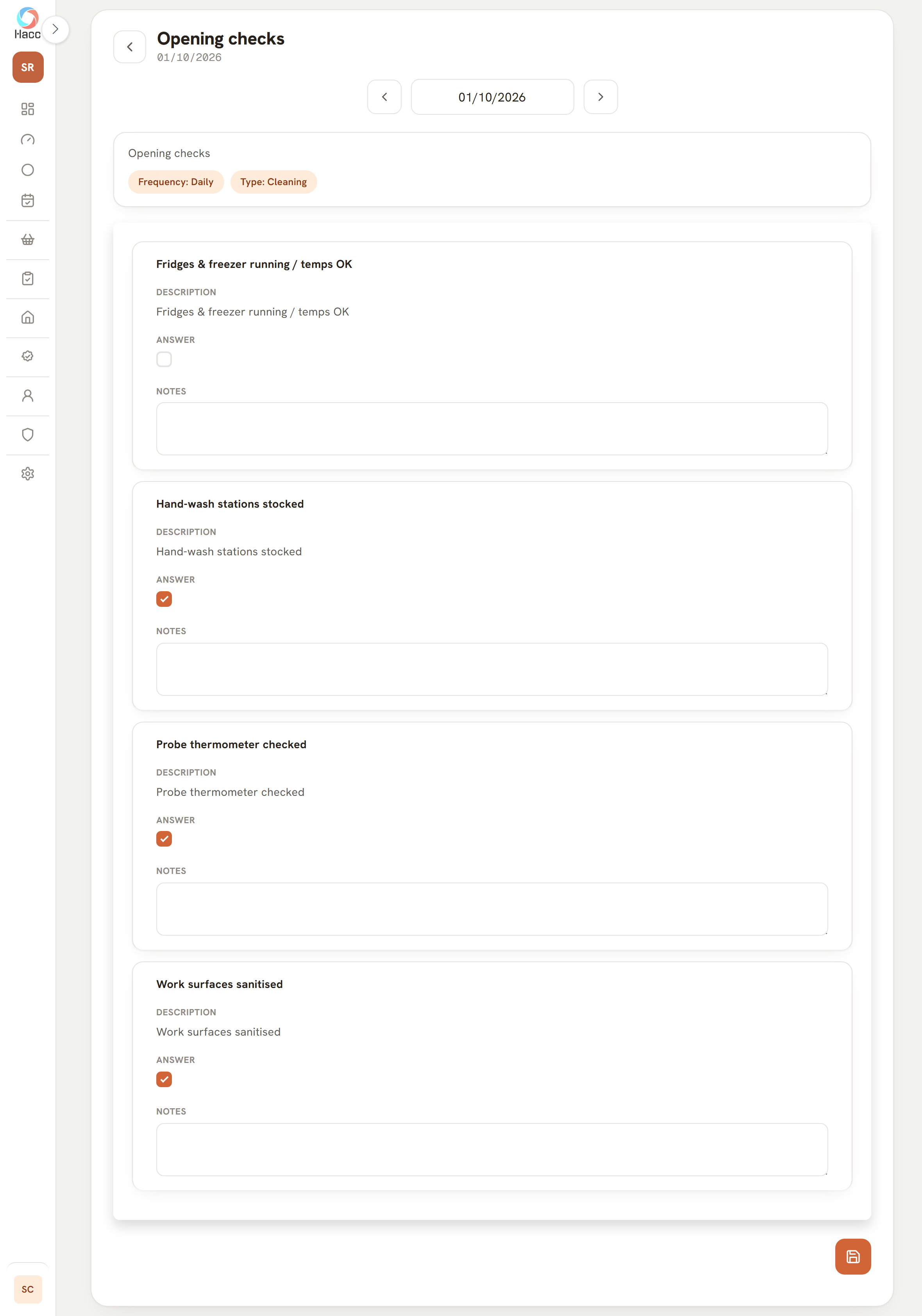
The "Opening checks" checklist for 01/10/2026, with chips reading "Frequency: Daily" and "Type: Cleaning". The first item, "Fridges & freezer running / temps OK", has an empty tick box and an empty notes box. The second, "Hand-wash stations stocked", is ticked.
An opening checklist part way through: one item ticked, one still to do, and a notes box against each.

After-use checklists for jobs with no fixed time

Cleaning the slicer after use or clearing up a spillage is logged each time it happens, not on a timetable.

  • These checklists sit on Today in a band headed "When needed", for staff whose role lets them record checklists. Each shows when it was last done.
  • You can set how often you aim to do each one: 1, 2, 3, 7, 14 or 30 days. Once it has gone longer than that without being logged, its row on Today turns amber.
A band headed "When needed" with the words "On-demand checklists" and a note to log them whenever the trigger happens. One row reads "Ad-hoc deep clean", with a chip reading "As needed" and "Last done: 10 days ago".
An after-use checklist on Today, showing when it was last done.

Sign off the day, with a reason for anything missed

At close, someone signs on screen for the day's records, and anything not done has to be finished or given a reason first.

  • Anything left undone needs a reason: "Not needed today", "No stock", "Equipment out of use", "Staff shortage", or "Other" with a written explanation.
  • A cook that has been started and is still going, such as a ham cooking overnight, is listed under "Still going". For up to 3 days it needs no reason and does not block the signature. After that it needs a reason like any other unfinished record.
  • A day's sign-off cannot be edited or deleted in the app. The day's records can still be corrected afterwards, so "Re-sign (amendment)" signs the day again as it then stands, and the original sign-off stays on record.
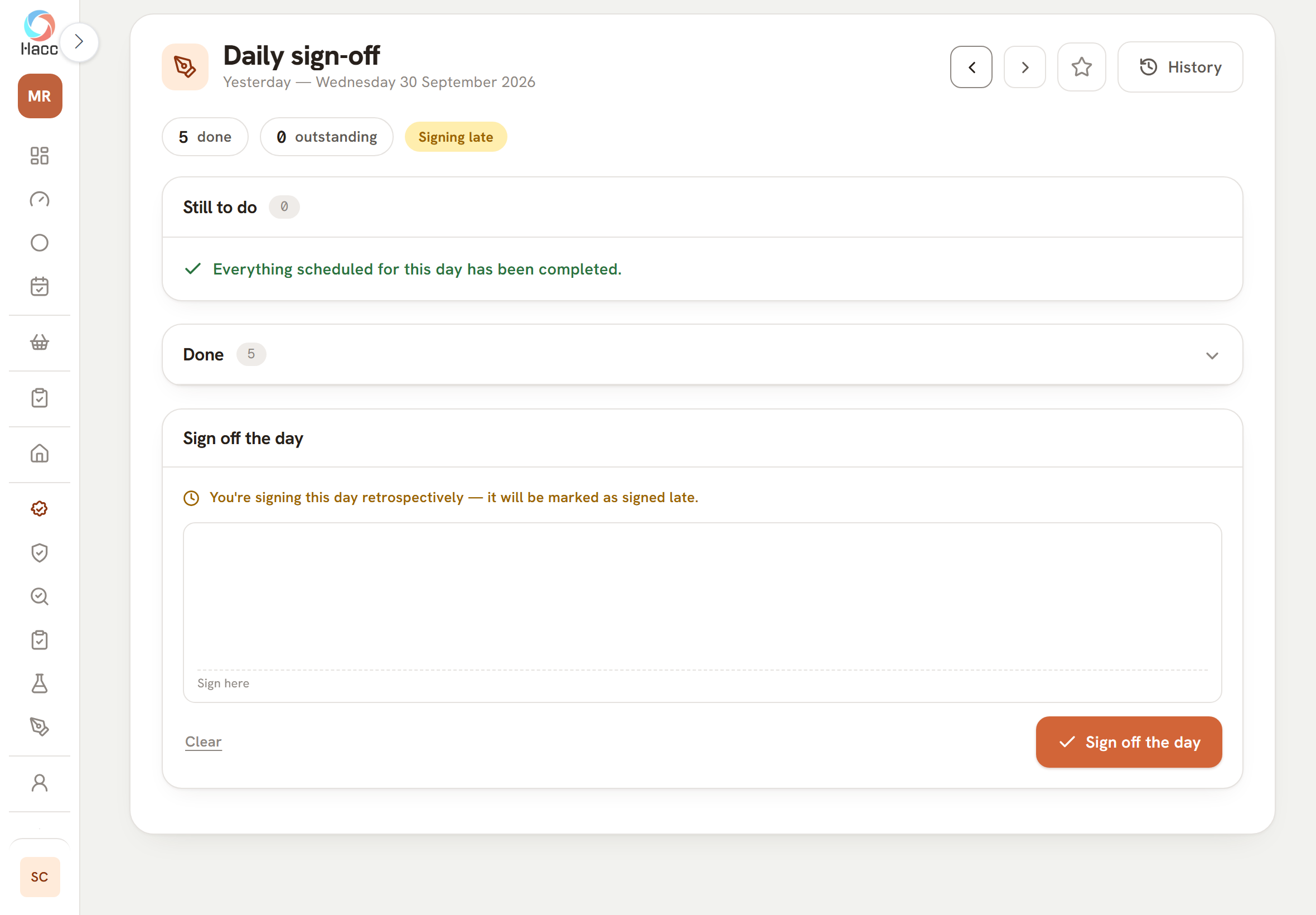
The Daily sign-off page for "Yesterday", Wednesday 30 September 2026. Chips read "5 done", "0 outstanding" and "Signing late". A "Still to do" card says everything scheduled for the day has been completed, and a "Done" card shows 5. A "Sign off the day" card warns that the day is being signed retrospectively and will be marked as signed late, above an empty signature box marked "Sign here", a "Clear" link and a "Sign off the day" button.
Signing off yesterday's records a day afterwards: every check was done, and the app marks the sign-off as late.
  • Your own fridges, ranges and rounds

    You list your own appliances with their safe ranges, then decide which get checked, how often and by when.

    • A temperature check is a named round. It can be Daily, Weekly on the weekdays you tick, Monthly on a day of the month, or every so many days.
    • It can be due at set times, "When we open" or "When we close". The last two follow your opening hours for that day.
  • Checks that only a manager can complete

    Some checks are for a manager to do, and the app keeps them that way.

    • Any checklist can be ticked "Manager only". Staff still see it on Today and the Tasks calendar with a "Manager only" chip, but it is locked for them.
    • A manager-only checklist does not hold up a member of staff signing off the day. When a manager signs, it has to be completed or given a reason like any other job.

Part 2

Cooking, cooling, holding and production

Cooking and cooling records, the jelly log, hot, ambient and cold holding, production batches and the counter board.

Cooking and cooling records, batch by batch

One record follows each cook from the time it went in to the last cooling reading, and the list shows which batches reached temperature and how far each has got.

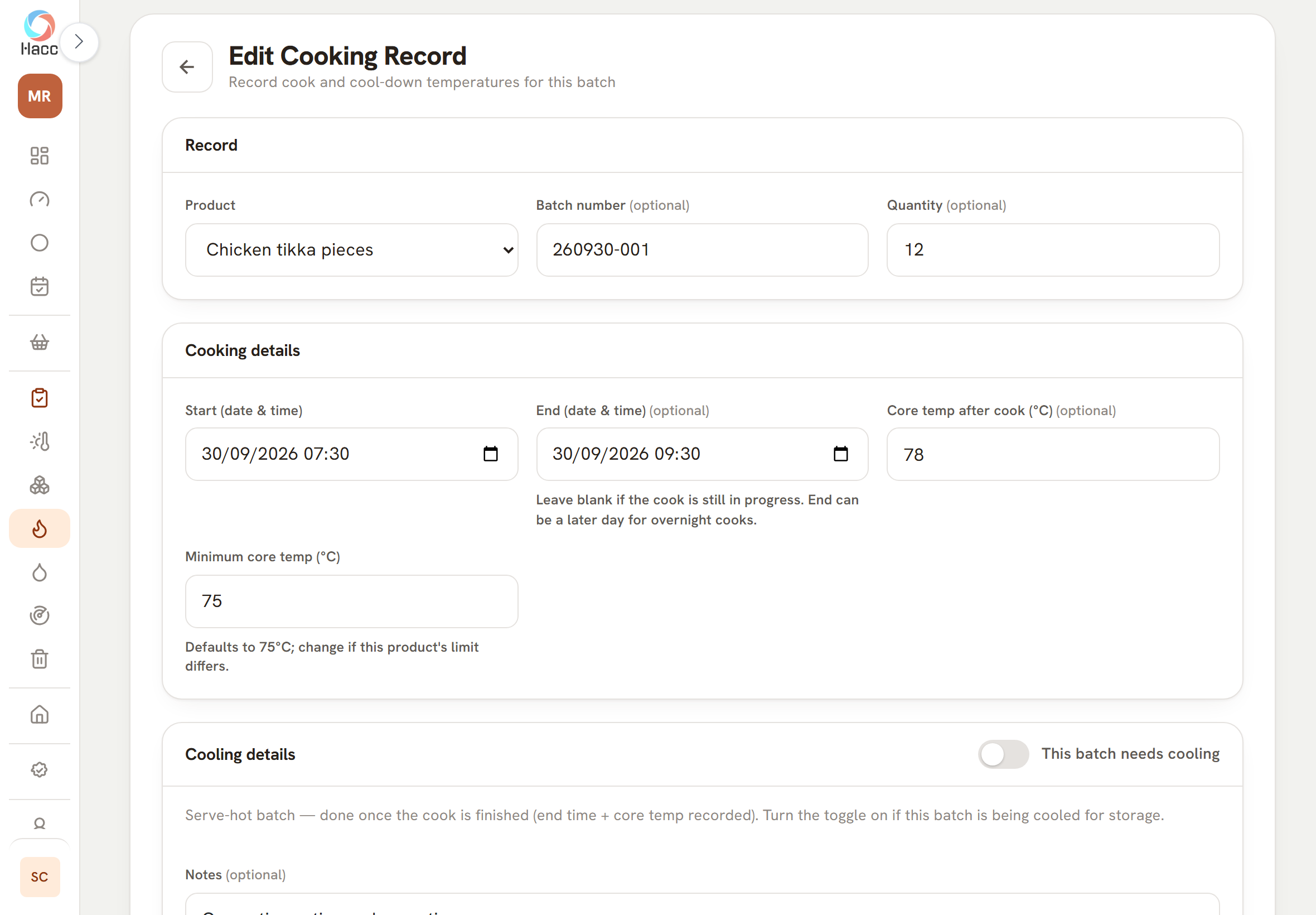
  • The core temperature is checked against a minimum that starts at 75°C and can be changed on each record.
  • Enter a reading below it and the form warns you before you save, and asks you to put the corrective action in Notes.
  • For a batch you are cooling, switch on "This batch needs cooling" and tap "Add reading" each time you probe it. Each reading keeps its time and temperature, and "Cooling complete" closes the record.
Edit Cooking Record form. Product Chicken tikka pieces, batch number 260930-001, quantity 12, start and end date and time, core temp after cook 78, minimum core temp 75, with the hint that the minimum defaults to 75°C and can be changed if the product's limit differs.
A cooking record takes the product, the start and finish, and the core temperature against a minimum you can change.

Hot and ambient food on a clock

Put a tray out and the app keeps its record: when it went on display, each probe reading you take and when it came off, with a clock for the time it is allowed.

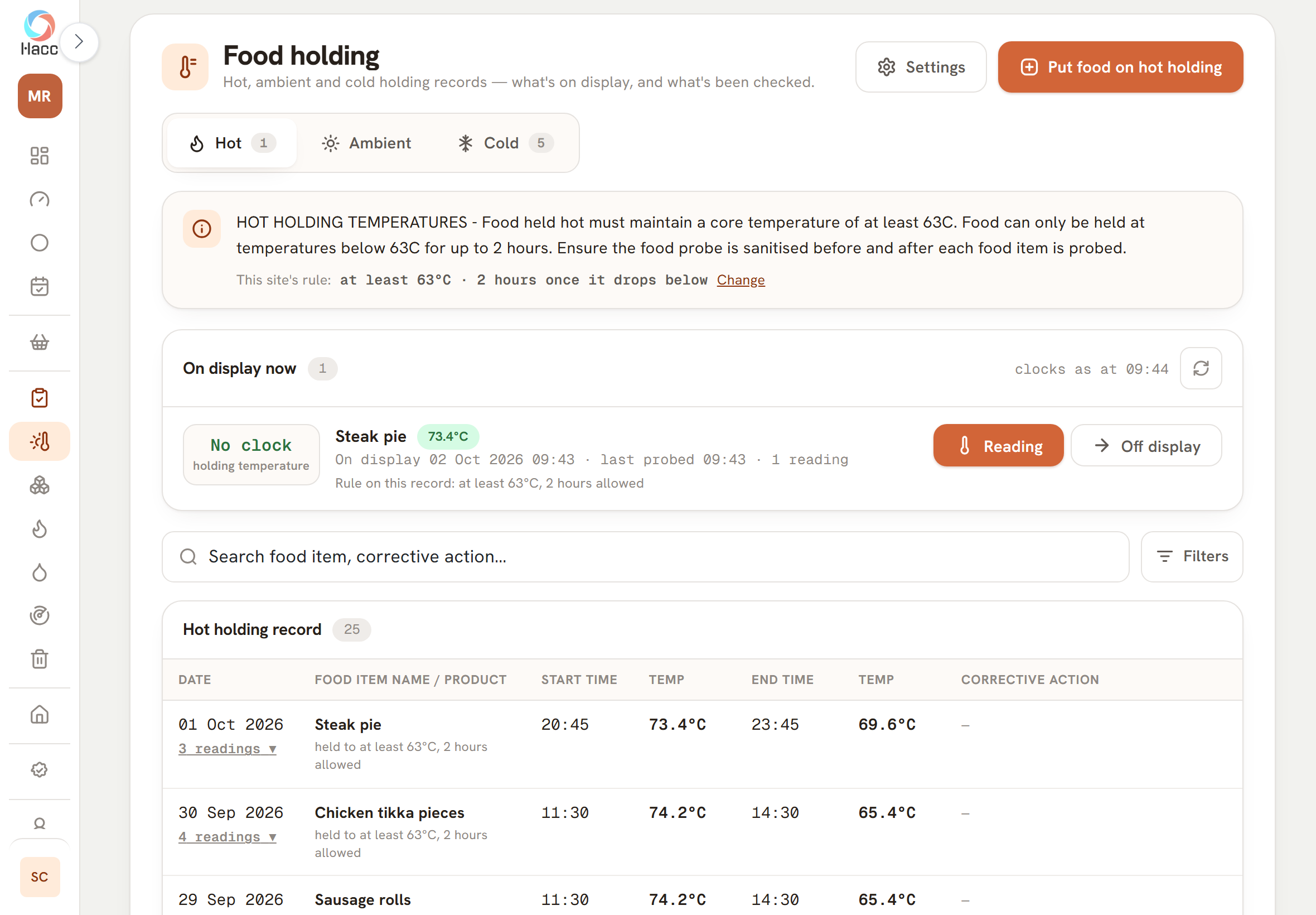
  • The rules the app starts with are these. Hot food is held at 63°C or above, with 2 hours allowed below that. Ambient food gets 4 hours out of the fridge, with no temperature rule.
  • When someone records the first reading below 63°C, the 2 hours start from that reading and the clock counts down.
  • The clock turns to its warning colour in the last 30 minutes and reads "Over" once the time has gone. Items that are over come first in the list, then the shortest countdown.
Food holding screen on the Hot tab. The hot holding instruction and this site's rule, at least 63°C with 2 hours once it drops below. Under "On display now", a steak pie at 73.4°C marked "No clock, holding temperature", on display since 09:43 with 1 reading, with Reading and Off display buttons.
One tray on hot holding, holding its temperature, with buttons to record a reading or take it off display.

A daily check sheet for cold holding

Every cold line on your sheet is listed each day, and you can see which have been probed, which have not, and which were over target.

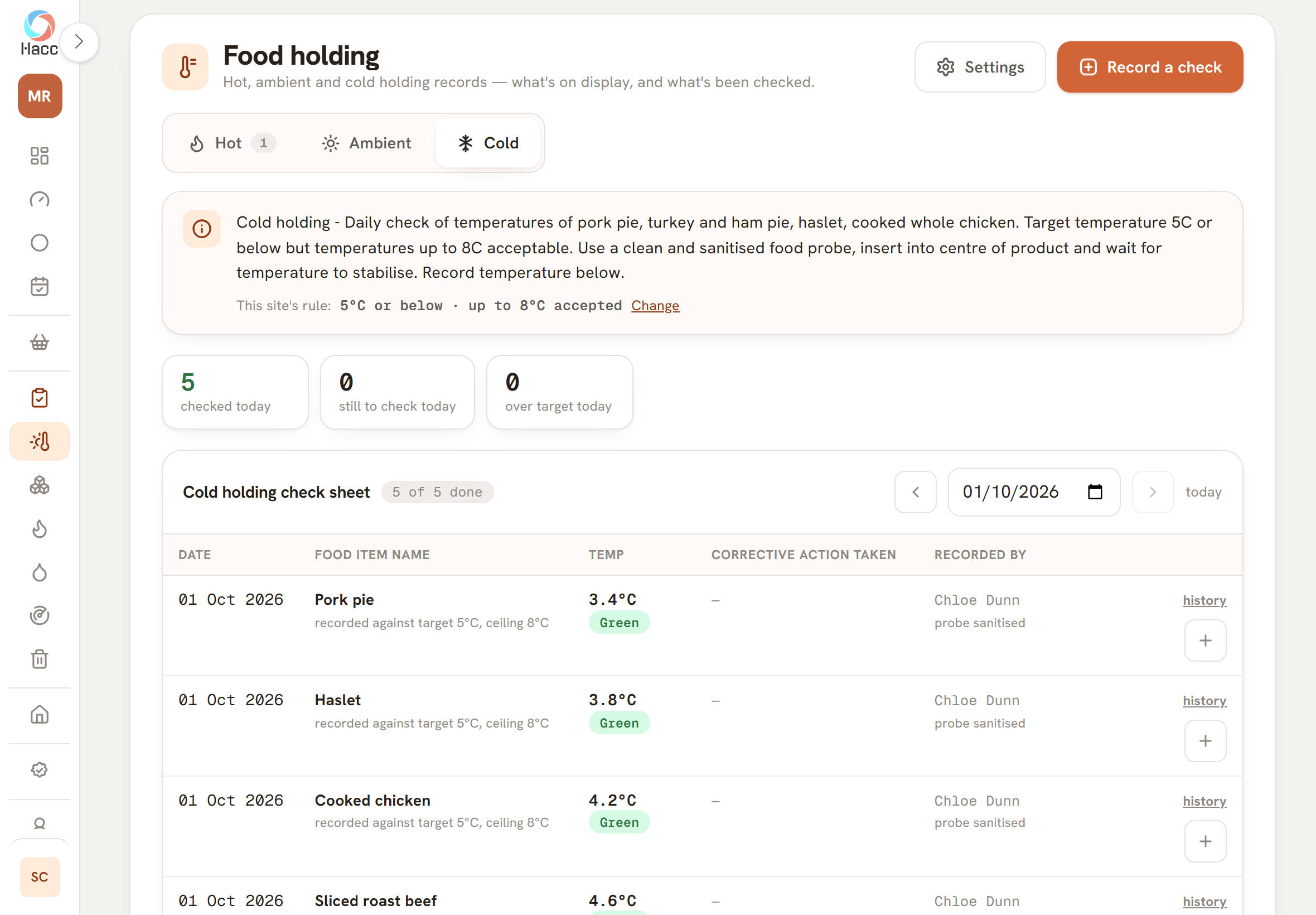
  • The rule the app starts with is a 5°C target with up to 8°C accepted, and it applies to every line on the sheet.
  • A reading at or below the target is Green. Above the target but within the ceiling is Amber, which still counts as a breach and asks you to write down what you did about it. Above the ceiling is Red.
Food holding screen on the Cold tab. The cold holding instruction and this site's rule, 5°C or below with up to 8°C accepted. Three figures: 5 checked today, 0 still to check today, 0 over target today. The cold holding check sheet, marked 5 of 5 done, lists pork pie at 3.4°C, haslet at 3.8°C and cooked chicken at 4.2°C, each marked Green with the name of the person who recorded it and "probe sanitised".
The cold holding check sheet for one day, with every line probed and every reading in the green.

Batch numbers and use-by dates for what you make

Record a batch and the app gives it the next batch number, works out its use-by date from the shelf life, and keeps anything running out of time at the top of the screen.

  • Nobody types a batch number. Each shop chooses its format from worked examples.
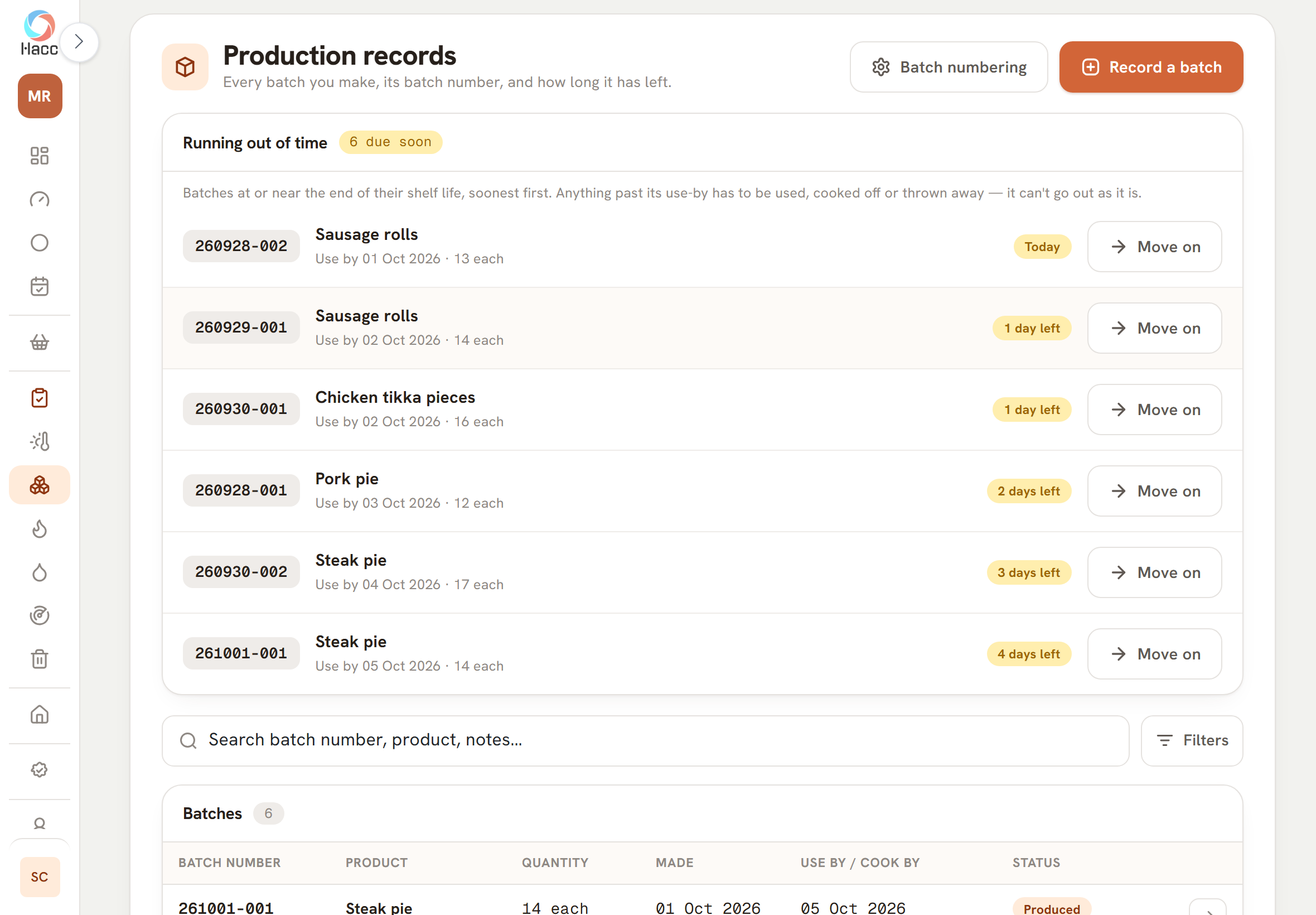
  • "Running out of time" lists the batches that are within 7 days of their date or already past it, soonest first, each with a plain countdown.
  • "Move on" sets a batch's status by hand: Produced, Cooked, Used, Wasted or Expired.
The Production records screen. The "Running out of time" panel, marked 6 due soon, lists six batches with their batch numbers, soonest first: sausage rolls due Today, sausage rolls and chicken tikka pieces with 1 day left, pork pie with 2 days left, and two steak pie batches with 3 and 4 days left. Each row shows its use-by date and quantity and has a "Move on" button.
Batches close to their use-by date sit at the top of the Production screen, soonest first, each with its batch number and the days it has left.

A counter board that shows the days left

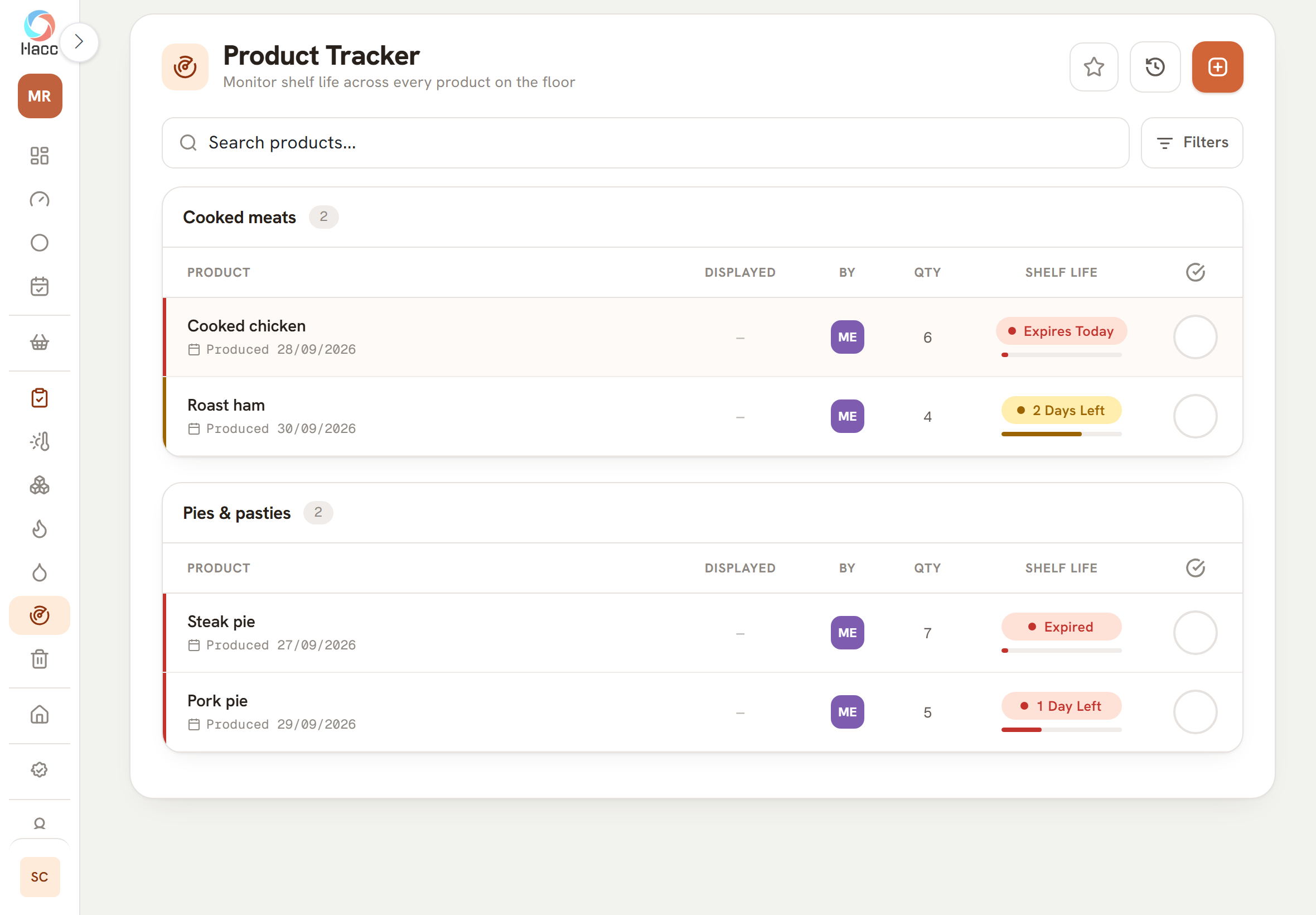
The Product Tracker is a quick board of what is out on the counter, grouped by category, with the days left on each item and a tick to clear it when it has gone.

  • Add an item with its name, its category, the date it was produced and its shelf life in days.
  • Each item shows a pill such as "5 Days Left", "1 Day Left", "Expires Today" or "Expired". Days left are counted from the date produced.
Product Tracker screen with two category cards. Under Cooked meats, cooked chicken is marked "Expires Today" in red and roast ham "2 Days Left" in amber. Under Pies & pasties, steak pie is marked "Expired" and pork pie "1 Day Left", both in red. Each row shows the date produced, the maker's initials, a quantity, a shrinking bar and a tick circle.
The Product Tracker groups what is on the counter by category and colours each item by the days it has left.
  • A jelly log for pork pie makers

    If you make pork pies, the jelly has its own record: the temperature tested before filling, the batch it went into, the times, what happened to any leftover, and whether the canister and gun were cleaned.

    • "Jelly temperature (test before fill)" has to be filled in on every record. It is checked against a minimum that starts at 75°C and can be changed on the record.
    • A reading below it brings up a warning asking for the corrective action taken, and shows red in the list.
  • Your own holding limits, with old records left as they were

    The temperatures and times your holding records are judged against are yours to set, and changing one never re-scores a record that is already on file.

    • The figures start from the recommended legal ones. Your own food safety plan may be stricter, and you can set the app to match it.
    • Every holding record and every cold check keeps its own copy of the rule it was recorded under. A 9°C reading taken under an 8°C ceiling stays a breach after the ceiling is raised.

Request a demo

Part 3

Goods in and out

Deliveries, suppliers, products, returns and complaints, wastage, and the batch numbers on what comes in and what you make.

Goods-in checks with batch numbers, use-by dates and a signature

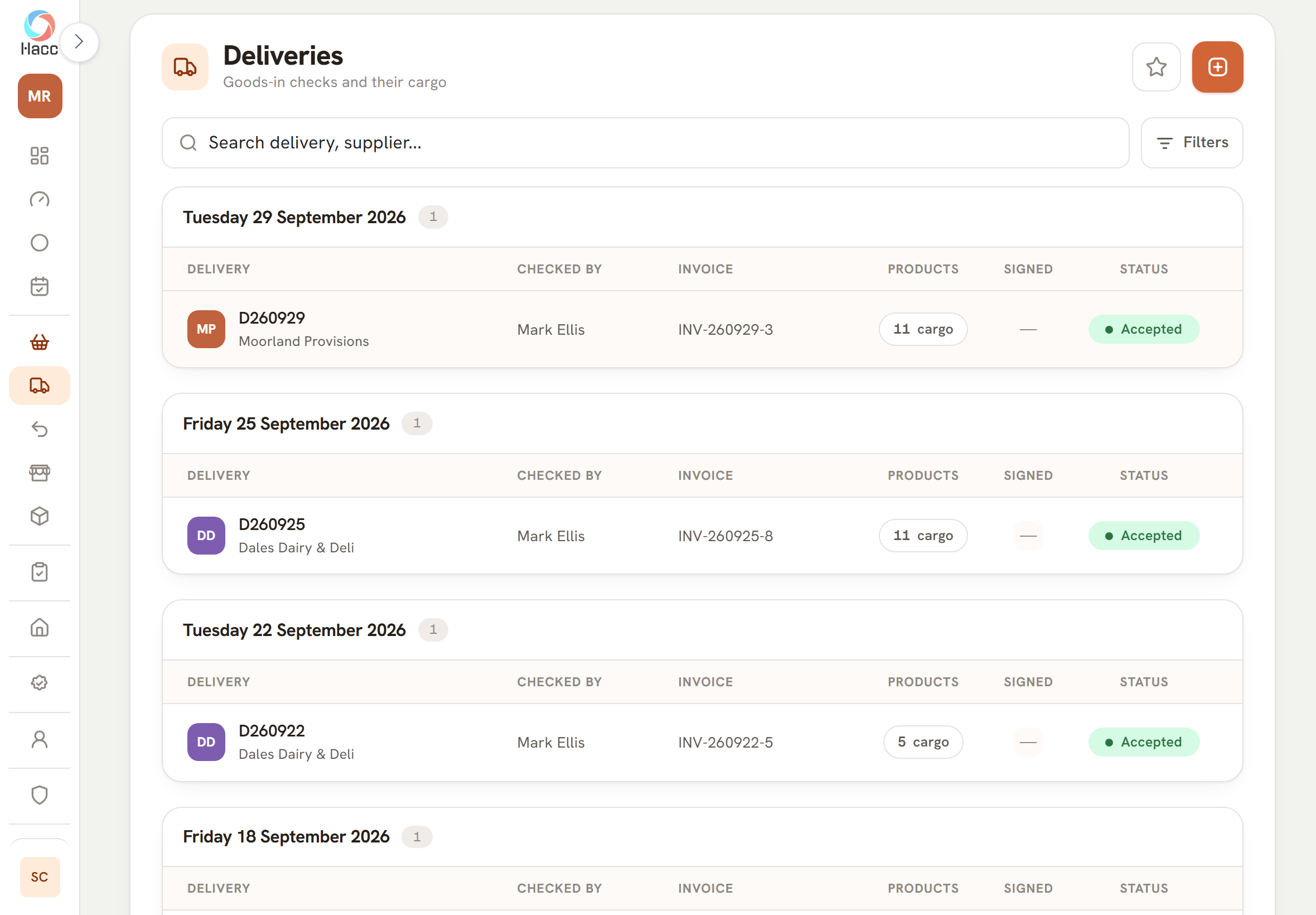
Each delivery gets one record: who it came from, the temperature on arrival, who checked it and each product with its batch number and use-by date.

  • "Take photo" opens the camera on the tablet so you can photograph the supplier's invoice.
  • The person receiving the goods can sign on the screen with a finger or a stylus. The signature is optional and can be added later.
Deliveries list with one card per day for 29, 25 and 22 September 2026. Each row shows a delivery ID with the supplier's name under it, the name of the person who checked it, an invoice number, a button reading "11 cargo" or "5 cargo", a dash in the Signed column and a green Accepted status.
The Deliveries list groups goods-in records by day, with the supplier, the invoice number and the status on each row.

A supplier list with plant numbers and what each one sells you

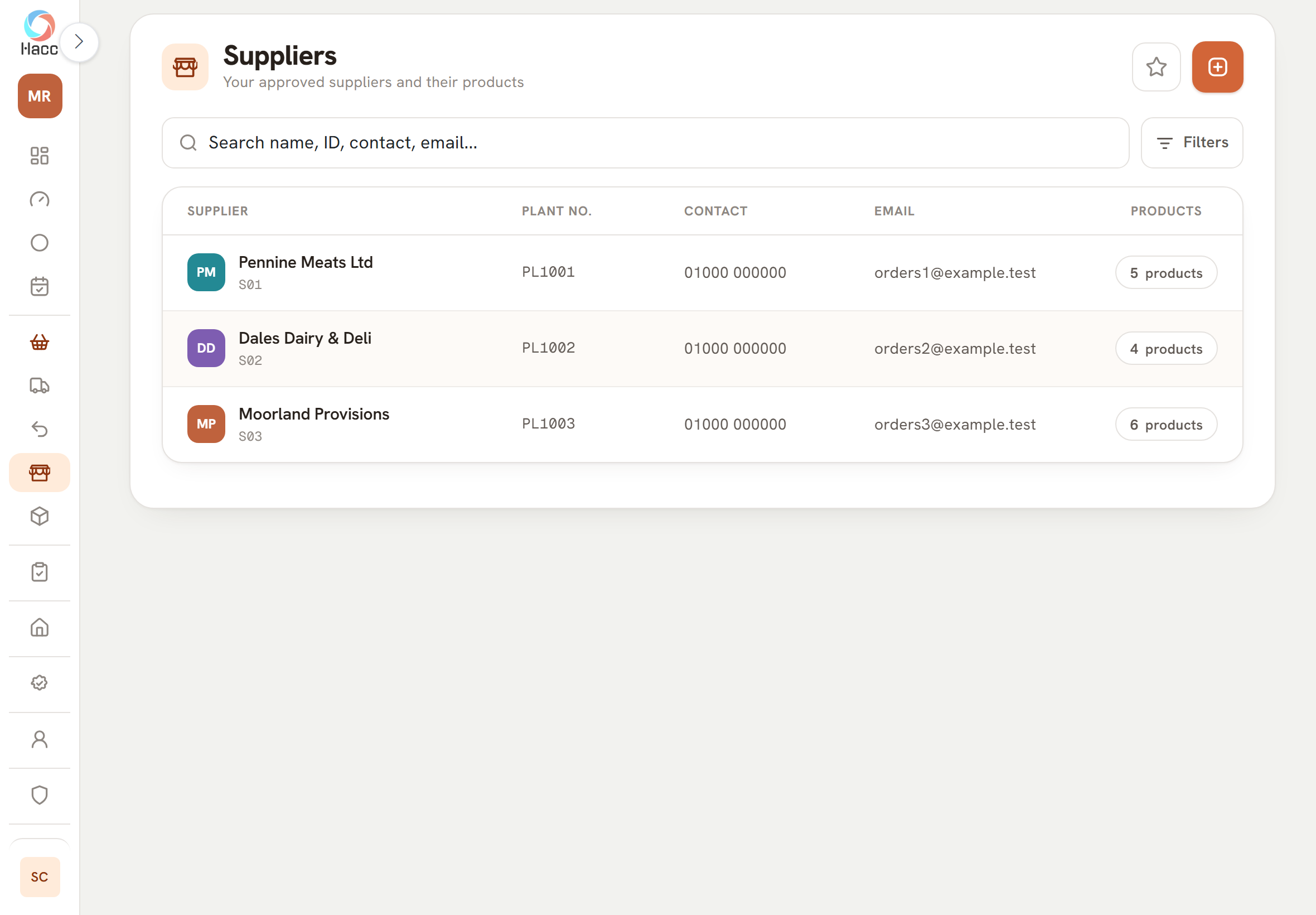
Your suppliers sit in one list, each with its plant number, its contact details and the products you buy from it, and that list is what staff pick from when a delivery arrives.

  • On a delivery, staff can only pick products that belong to the chosen supplier, and the product's plant number is carried onto the delivery line.
  • If you already keep your supplier list in a spreadsheet, Conexio can load it for you from a CSV file at set-up.
Part of the Suppliers list showing three suppliers. Each has a coloured badge with its initials, a short ID under its name, and a plant number: PL1001, PL1002 and PL1003.
Each supplier is listed with its plant number.

Returns, rejects and complaints, and what was done about them

A customer return, a rejected delivery and a complaint all go in one list, each with what happened to the food and whether the matter is closed.

  • For a return or a reject, the case will not save until the item is named and you have chosen what was done with it: Destroyed, Quarantined, Returned to supplier, or Refund only (food not taken back).
  • Tick "Mark resolved" and the app stamps who resolved the case and when. Until then it shows as Open.
The Returns & complaints section of the Inspection page, with a count of 3 and a badge reading "2 awaiting outcome". A supplier reject and a complaint are each marked "awaiting outcome". A customer return is marked "Resolved · Destroyed". Each of the three rows has a date, the item, the reason and a warning icon, which marks a case ticked as a food-safety concern.
The period's returns, rejects and complaints are listed on the Inspection page, each with where it stands.

A daily wastage sheet that shows the cost

Each day has a sheet of what was thrown away, how much, why, and what it cost you and would have sold for, with a running total for the month.

  • You can type what was wasted, so a tray of trim that is not on your product list can still go down, or pick one of your products and its cost price and retail price are filled in.
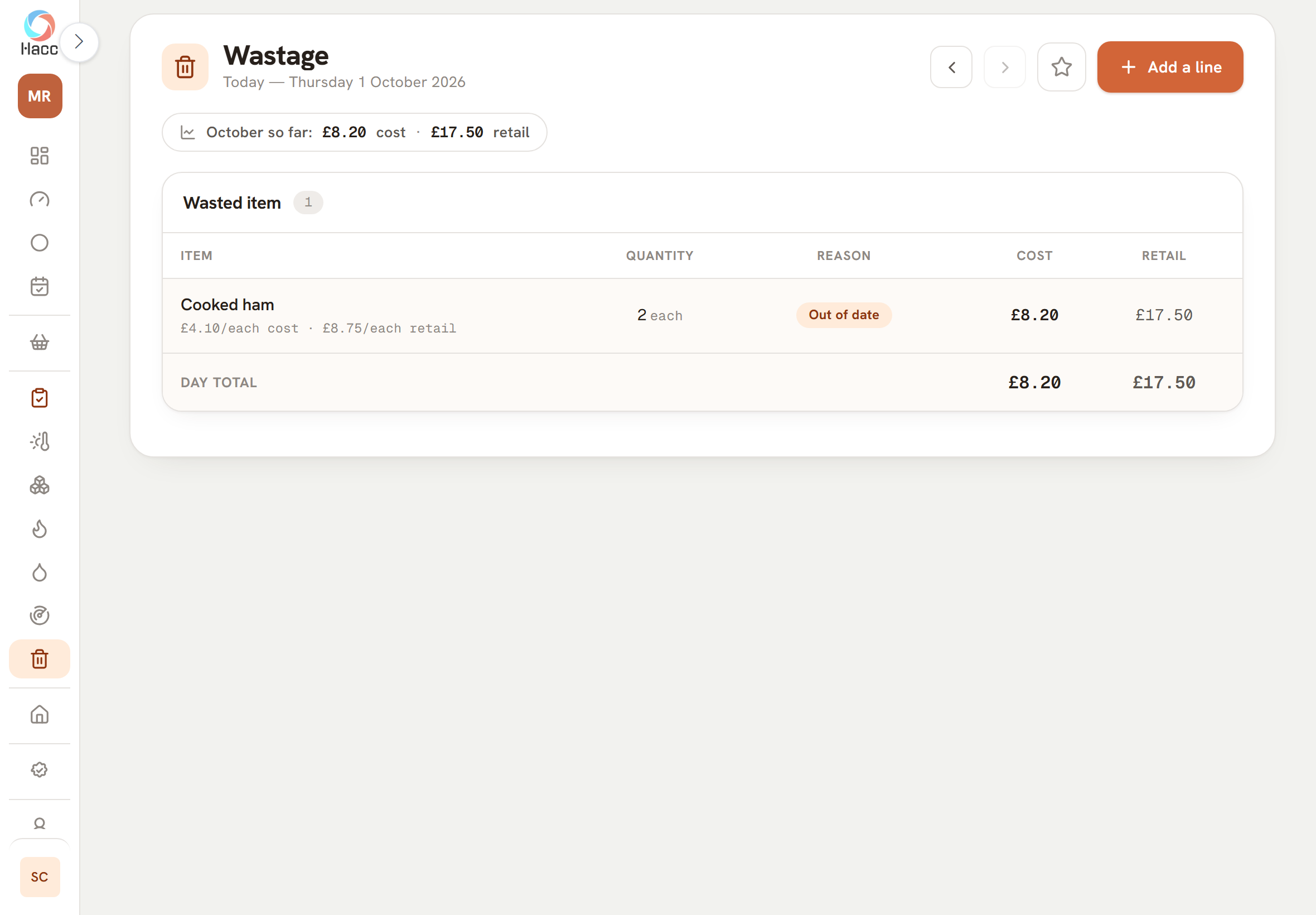
  • Above the sheet is the month's running total at cost and at retail, for example "October so far".
Wastage sheet for Thursday 1 October 2026. A line above the sheet reads "October so far: £8.20 cost · £17.50 retail". One wasted item is listed: cooked ham, 2 each, reason "Out of date", at £4.10 each cost and £8.75 each retail, giving £8.20 cost and £17.50 retail. The Day total row shows the same two figures. An "Add a line" button and previous and next day arrows are at the top right.
The wastage sheet values each line at cost and at retail and keeps a running total for the month.

Batch numbers on what comes in and what you make

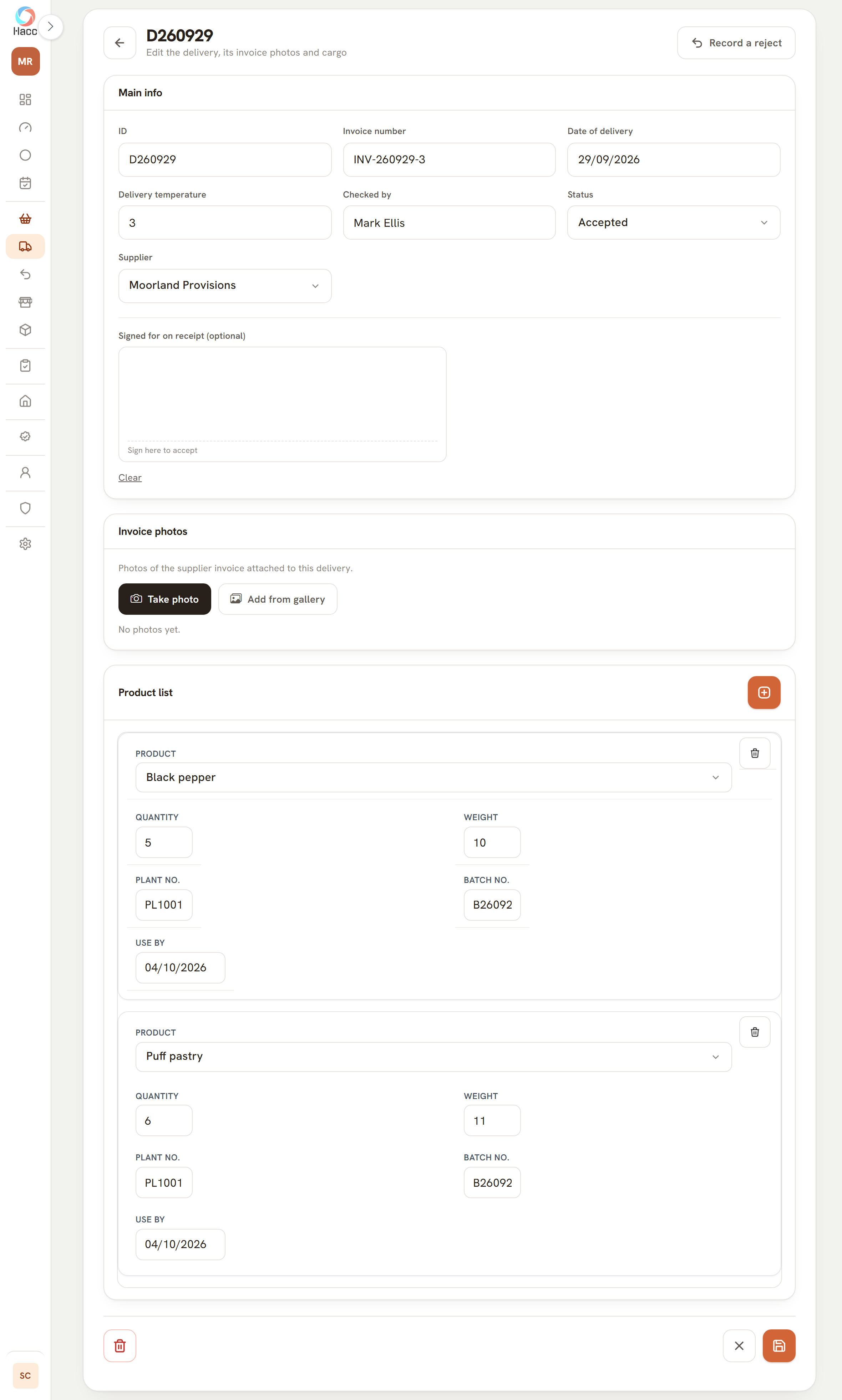
The app records the supplier, batch number and use-by date of each product line booked in on a delivery, and gives each batch you record under Production its own number.

  • Production, Cooking and Returns can each be searched by batch number. On a tablet or a computer, a delivery's lines can be searched by batch once you have found that delivery.
  • Each of these lists is searched on its own. The supplier's batch number is on the delivery line, the number the app issues is on the production batch, and a cooking record or a return holds the batch number entered on it.
The product list on a delivery, with two lines shown as cards: black pepper and puff pastry. Each line has a quantity, a weight, a plant number, a batch number and a use-by date of 04/10/2026, with a bin icon to remove the line and a plus button to add another.
Each line on a delivery has boxes for its own plant number, batch number and use-by date.
  • Product records with ingredients, allergens, shelf life and prices

    Each thing you sell has one record holding its ingredients and allergens, its shelf life, and its cost and retail price, and the app uses those figures when you record a batch or write down waste.

    • Type the ingredients, then tap "Highlight allergens" and every word from the allergen list that appears in them is put in bold.
    • It is a help with setting out the ingredients, not an allergen check.

Part 4

When the inspector calls

The record-keeping score, the Inspection page, Environmental Health Officer (EHO) visits, internal audits, pest control, COSHH, training and visitors.

A score out of 100 for your record-keeping, with the working shown

You get one number for how complete and up to date your food-safety records are, and a list of what to do to raise it.

It measures your own record-keeping in the app, and it is not a prediction of your Food Hygiene Rating.

  • "Records completed" is the scheduled temperature checks and checklist items that were done, as a share of those due in the period.
  • Points then come off for each fridge or freezer reading outside its safe range that has no corrective action written against it, up to a cap. Write down what was done and the deduction goes.
  • The score can also take daily sign-off into account. The foot of the page prints the rule in force.
  • The green band needs a score of 90 or more, no out-of-range reading still waiting for an action, and nothing overdue.
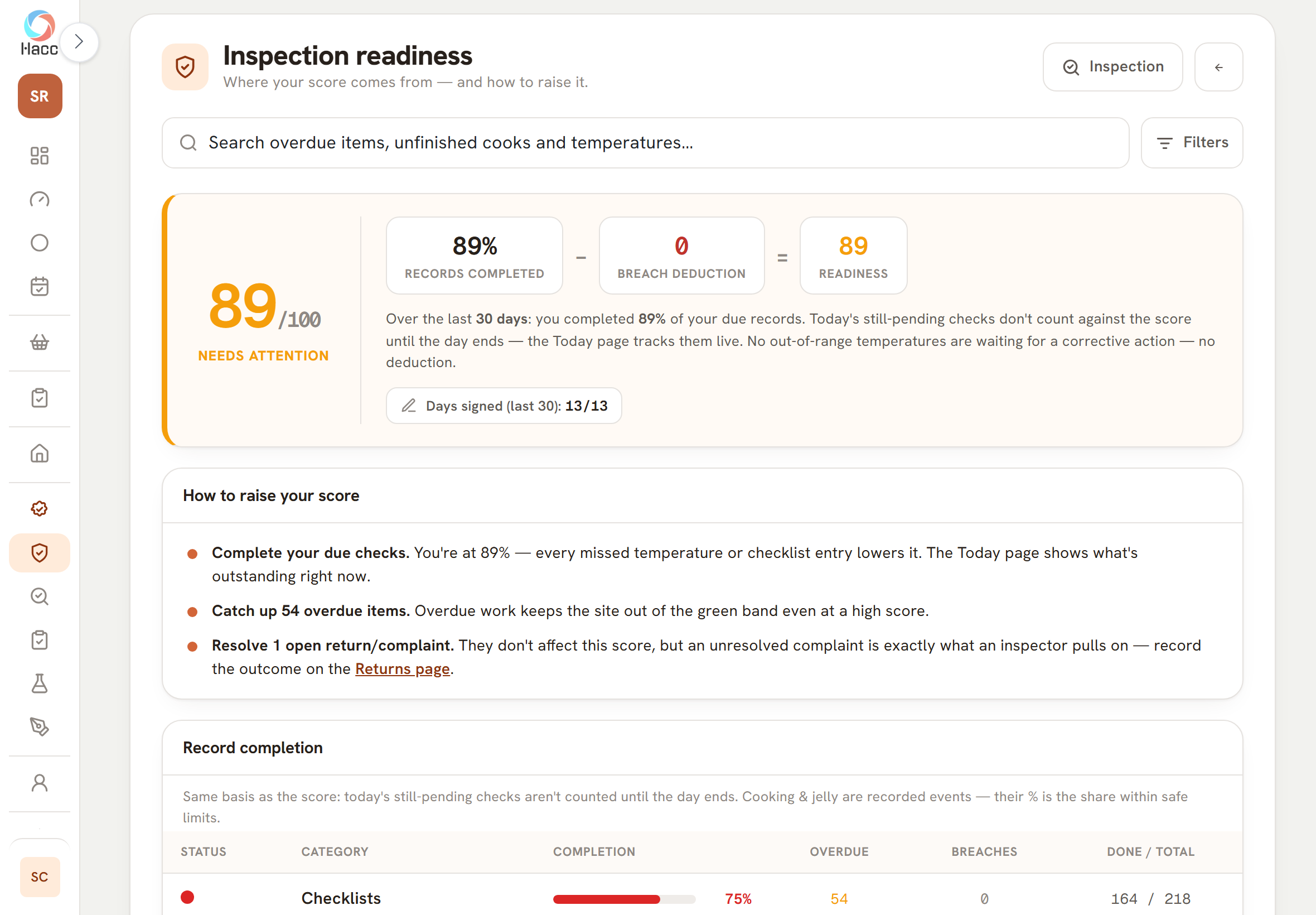
A card showing 89 out of 100 in amber with the label "Needs attention". Beside it three boxes read "89% records completed", minus "0 breach deduction", equals "89 readiness", above a sentence explaining the sum for the last 30 days and a chip reading "Days signed (last 30): 13/13". Below it a card headed "How to raise your score" lists three points, which begin "Complete your due checks", "Catch up 54 overdue items" and "Resolve 1 open return/complaint".
A demo shop that left its checklists part done scores 89 out of 100 for record-keeping, with the sum behind the number and what to do next.

One page to show the inspector

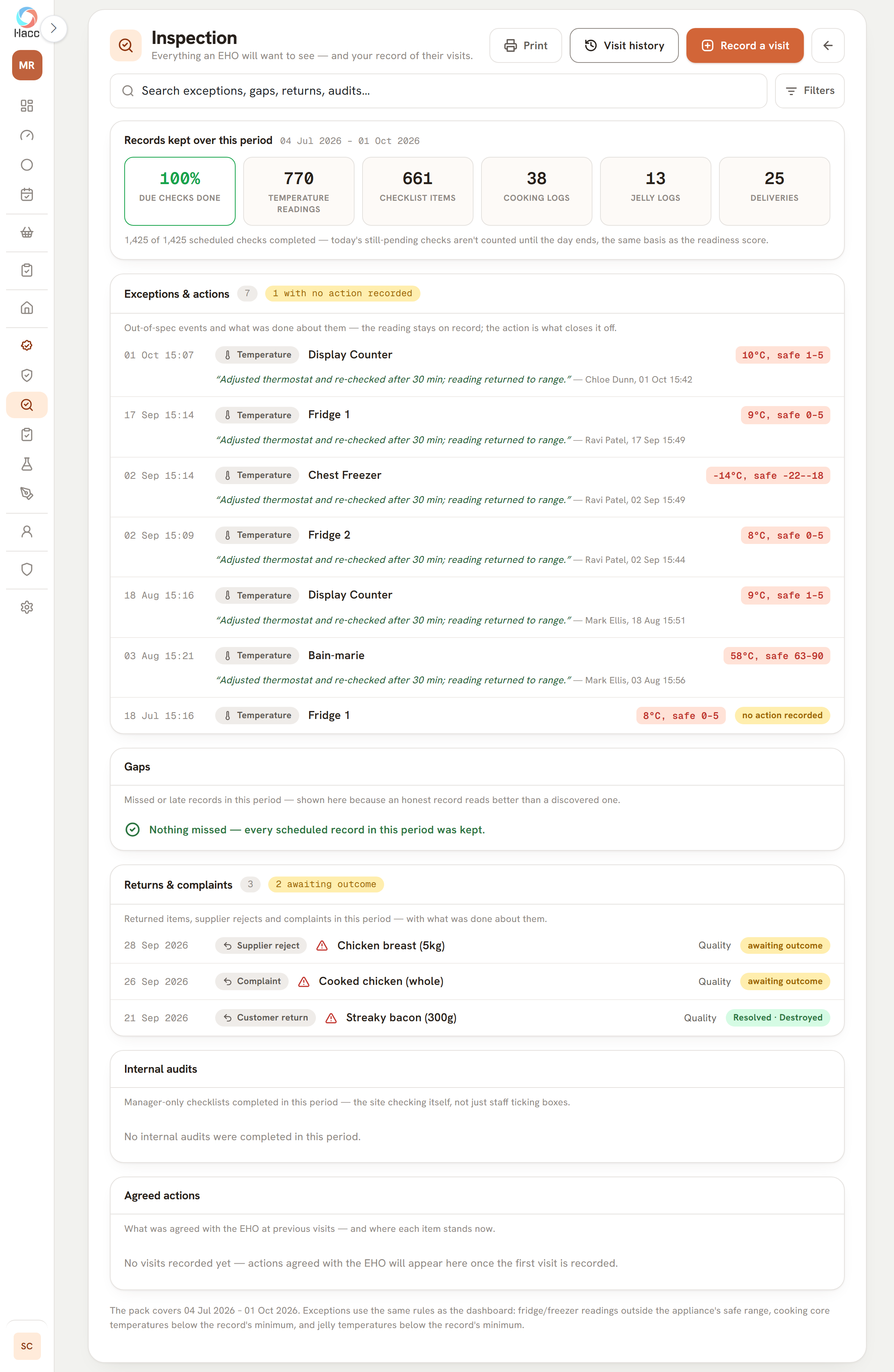
When an EHO asks to see your records, one page lays out what was kept, what went wrong and what was done about it.

  • "Exceptions & actions": fridge and freezer readings outside the safe range, cooking core temperatures below the minimum on the record, and jelly temperatures below the minimum, each with either the action taken in quotes or a "no action recorded" flag.
  • "Gaps": the scheduled records that were missed or are overdue.
  • The "Print" button prints the page through your browser on a layout made for paper.
  • Pest control, COSHH, staff training and the visitor log have their own pages to show on screen.
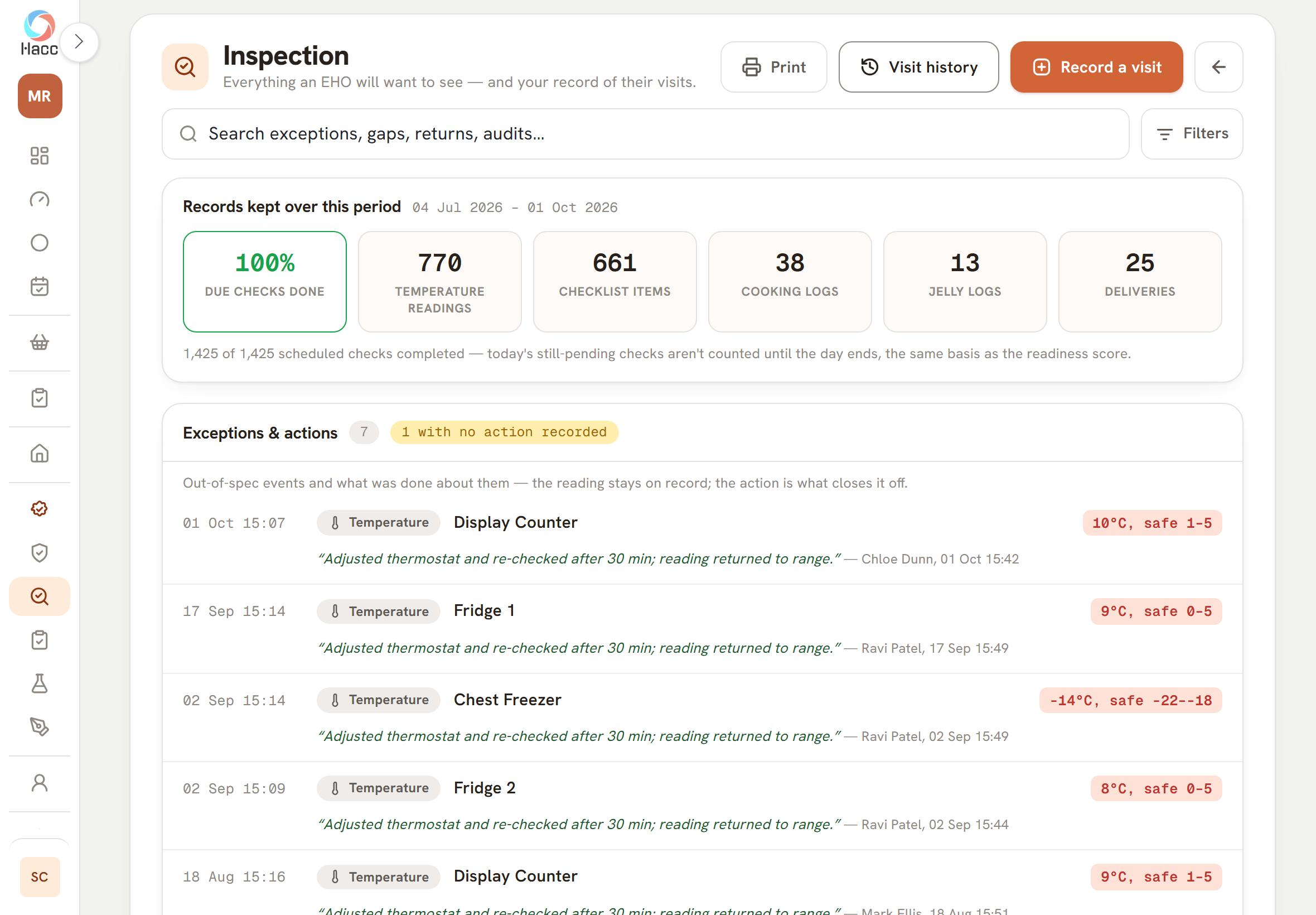
Part of the Inspection page. A card headed "Records kept over this period", 04 Jul 2026 to 01 Oct 2026, shows six figures: 100% due checks done, 770 temperature readings, 661 checklist items, 38 cooking logs, 13 jelly logs and 25 deliveries. Below it, "Exceptions & actions" shows a count of 7 and a label reading "1 with no action recorded", then four out-of-range readings: Display Counter at 10°C (safe 1 to 5), Fridge 1 at 9°C (safe 0 to 5), Chest Freezer at -14°C (safe -22 to -18) and Fridge 2 at 8°C (safe 0 to 5). Under each is the action taken in quotes, followed by a name, a date and a time.
The Inspection page: what was recorded over the period, then four out-of-range readings, each with the action taken, who recorded it and when.

Pest control: the contract, the visits and what the technician asked for

Your pest control contract, each contractor visit and the recommendations still outstanding sit on one page, with the 24-hour number at the top.

  • A member of your staff records the visit. The technician can sign on the screen, and it is optional.
  • "Open recommendations" gathers every recommendation not yet done, from all visits, oldest due date first, each marked "Open" or "Overdue".
  • Overdue visits and recommendations are flagged on the page.
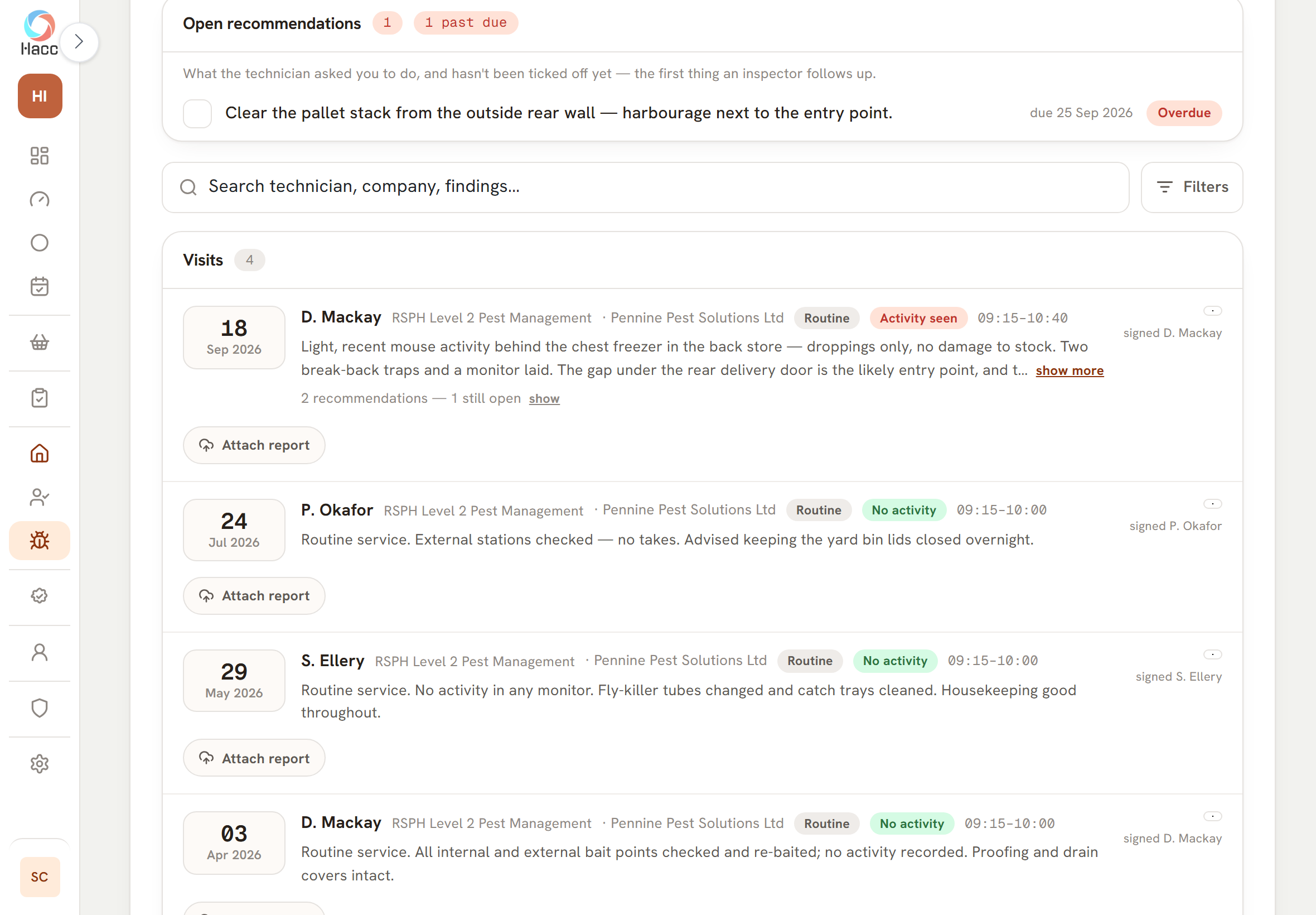
A card headed "Open recommendations" with a count of 1 and a label reading "1 past due". One unticked item, about clearing a pallet stack from the outside rear wall, is due 25 Sep 2026 and marked "Overdue". Below a search box, a "Visits" list with a count of 4 shows three visits. 18 Sep 2026: a routine visit marked "Activity seen", 09:15 to 10:40, with findings describing light mouse activity behind the chest freezer and the words "2 recommendations" and "1 still open". 24 Jul 2026 and 29 May 2026: routine visits marked "No activity". Each visit shows the technician's name and qualification, the contractor's name, a "signed" line and an "Attach report" button.
A contractor's recommendation still open and past its due date, above the visits on record.

COSHH: each chemical, how to use it and its safety data sheet

One register lists the cleaning chemicals on site with what staff need to know to use each one safely, and flags any that are missing a safety data sheet.

  • Each chemical's row shows what someone holding the bottle needs: its hazard labels, the PPE required, contact time, dilution, where it is stored, whether to rinse after use, and a "Never mix with" warning.
  • The safety data sheet is attached as a PDF or a photo.
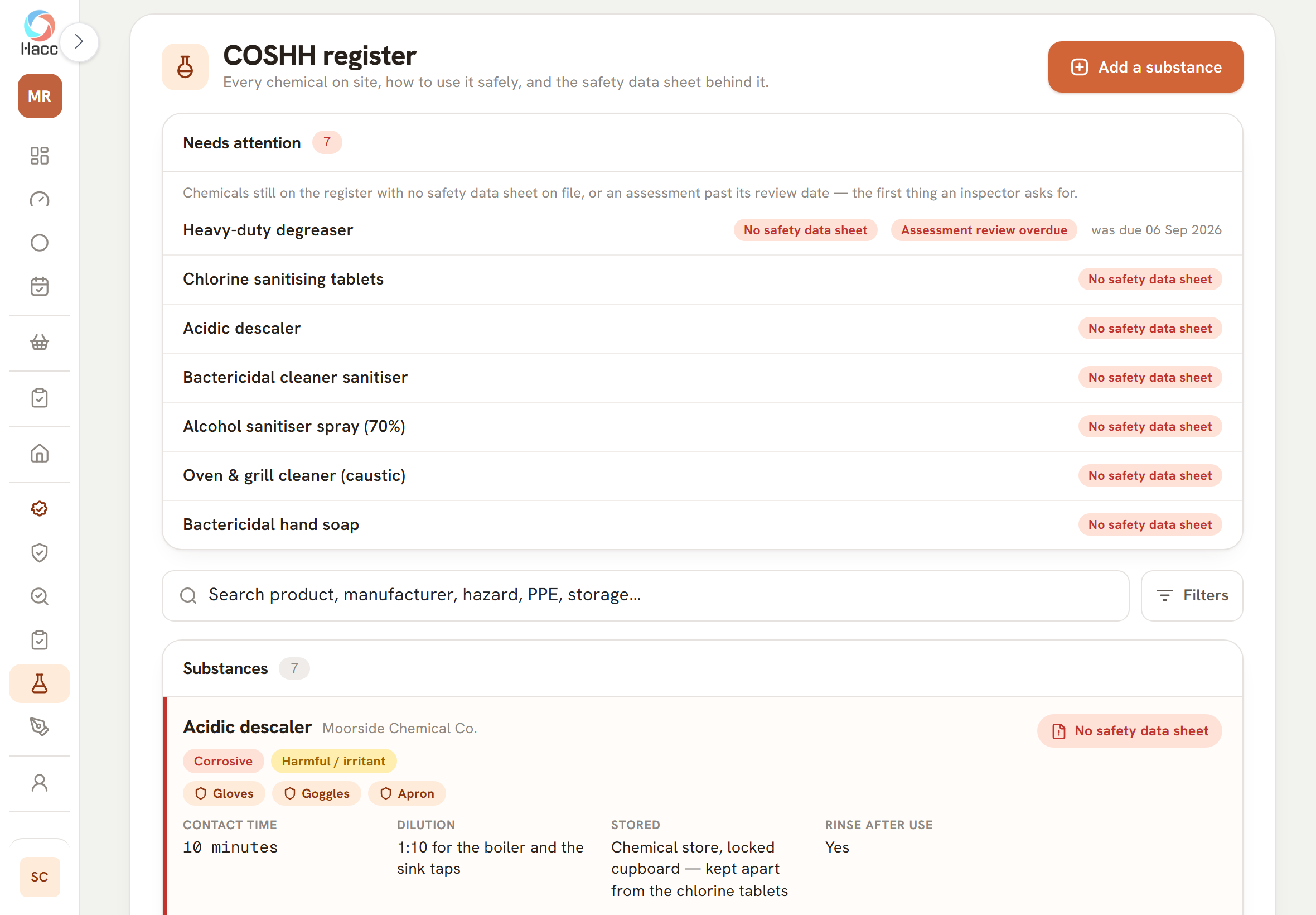
A panel headed "Needs attention" with a count of 7. A line under the heading says these are chemicals with no safety data sheet on file or an assessment past its review date. The panel lists Heavy-duty degreaser, Chlorine sanitising tablets, Acidic descaler, Bactericidal cleaner sanitiser, Alcohol sanitiser spray (70%), Oven & grill cleaner (caustic) and Bactericidal hand soap, each labelled "No safety data sheet". The degreaser is also labelled "Assessment review overdue", was due 06 Sep 2026.
A register entered before any safety data sheets were attached: all seven chemicals are listed as needing one, and one assessment is past its review date.

Staff training: who is trained, and when it runs out

A grid of people against courses shows who is trained, who is not and when each certificate expires, with the certificates attached.

  • Every cell says its status in words with an icon, so nobody has to rely on colour: "Valid", "Due soon", "Expired", "Not done", or "n/a" where the course is not required of that person's departments.
  • People on the matrix are a staff list of their own. They do not need a login to the app.
  • Each person has a training record page with their history, newest first. "Attach certificate" adds the certificate as a PDF or a photo, and the grid cell then shows a paperclip with the number on file.
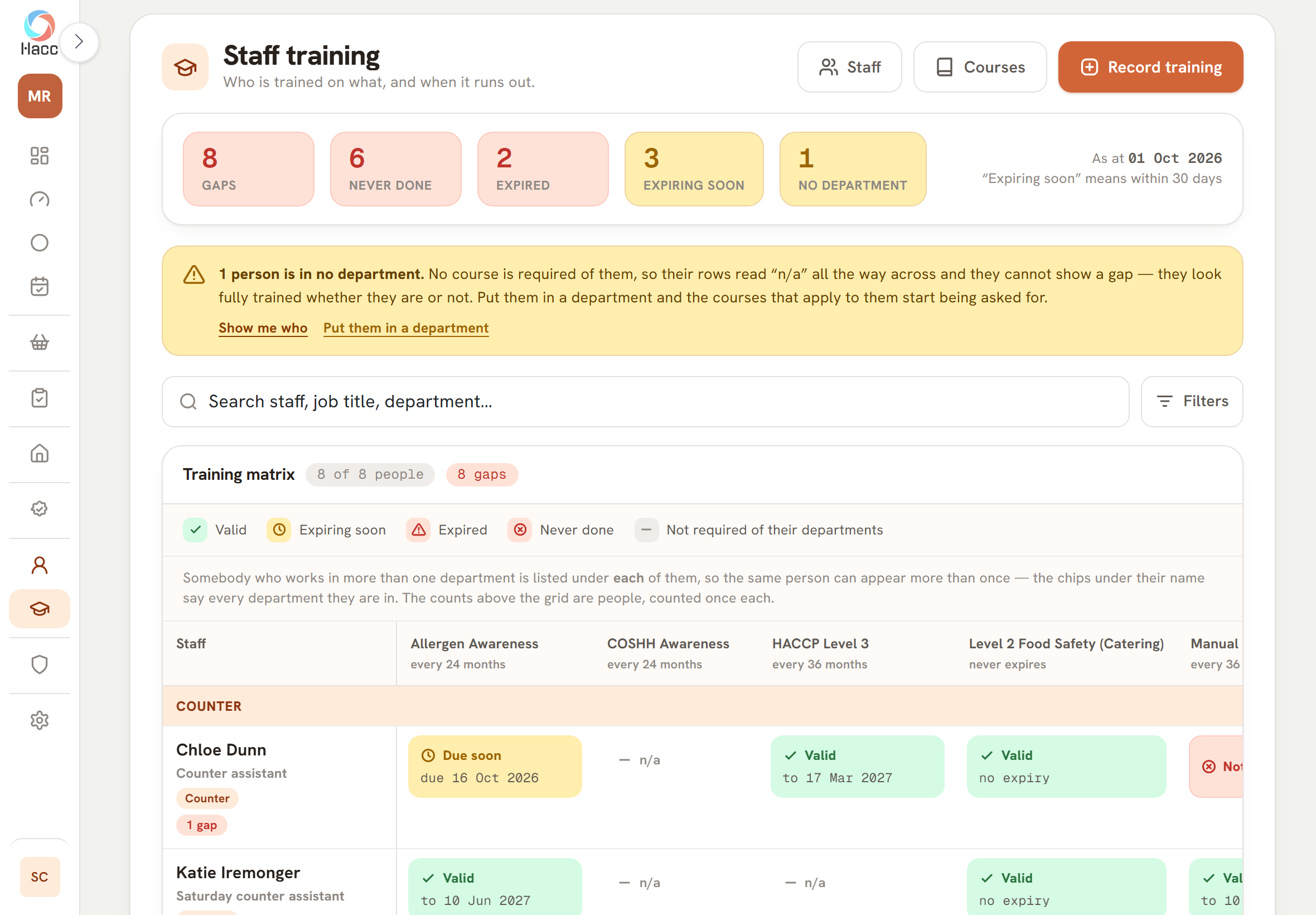
The Staff training page, with "Staff", "Courses" and "Record training" buttons. Five tiles read 8 gaps, 6 never done, 2 expired, 3 expiring soon and 1 no department, as at 01 Oct 2026, beside a note that "Expiring soon" means within 30 days. An amber notice says one person is in no department, so no course is required of them. Below a search box, the "Training matrix" shows "8 of 8 people" and "8 gaps", a key to the five statuses, and columns for Allergen Awareness (every 24 months), COSHH Awareness (every 24 months), HACCP Level 3 (every 36 months) and Level 2 Food Safety (Catering) (never expires), with a fifth column cut off at the right. Under a "Counter" band, a counter assistant's row reads "Due soon, due 16 Oct 2026", "n/a", "Valid to 17 Mar 2027" and "Valid, no expiry", with a "1 gap" label under the name.
Staff training at a demo shop: eight gaps counted at the top, a warning about one person in no department, and the first row of the matrix.

Visitors signed in and out on the shop's tablet

Contractors, engineers and other visitors are signed in and out on screen, with who they came to see, why, and how long they were on site.

  • A member of staff opens the Visitor Log and adds the visitor: their name, the date, who they are visiting, the reason, and time in.
  • The visitor can sign on the screen, in a box marked "Sign here".
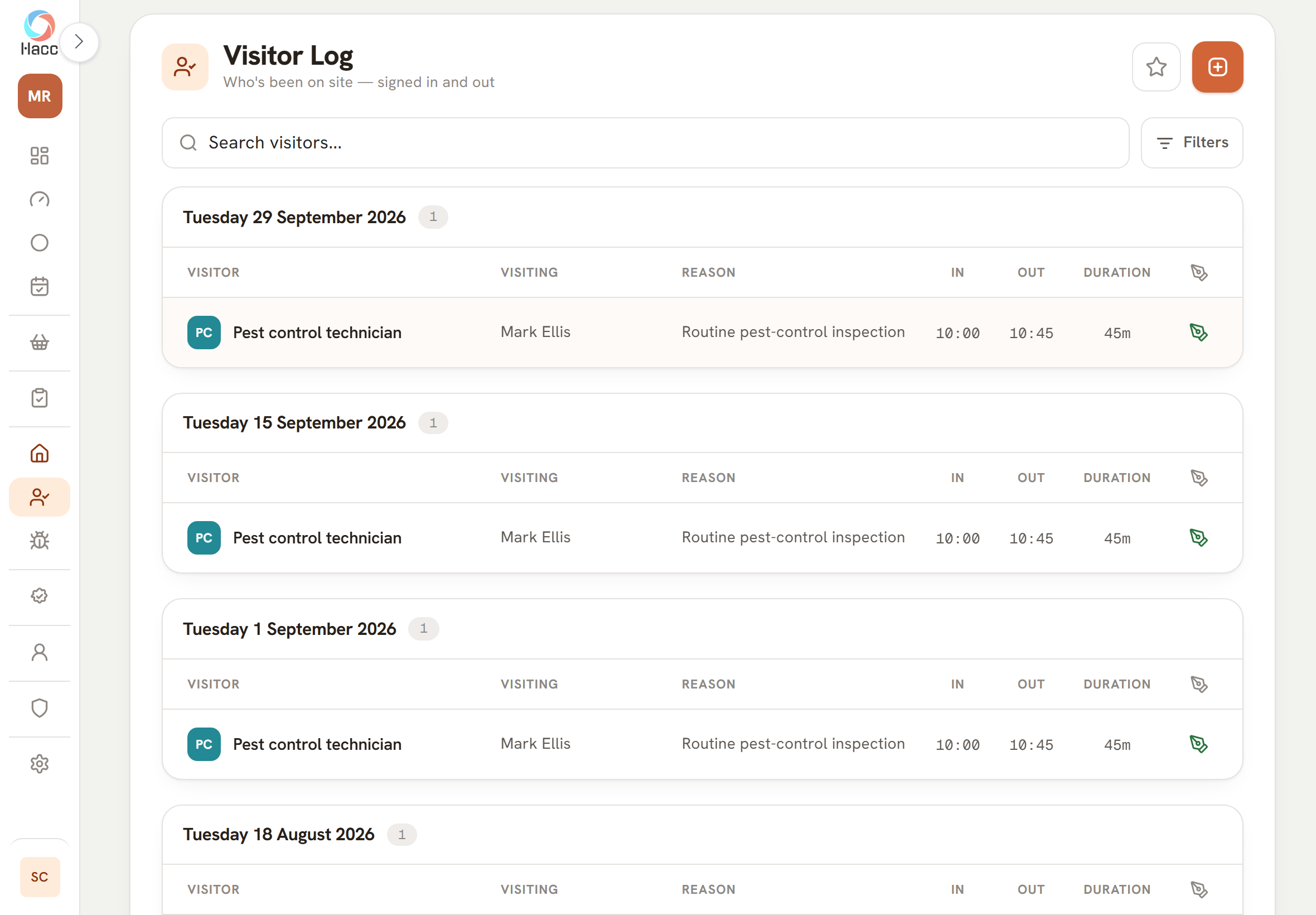
The Visitor Log page, with a search box, a Filters button, a star button and an add button. Two day cards, Tuesday 29 September 2026 and Tuesday 15 September 2026, each hold one visit under the columns Visitor, Visiting, Reason, In, Out and Duration: "Pest control technician", the name of the person visited, "Routine pest-control inspection", in at 10:00, out at 10:45, 45m, and a green pen mark.
The visitor log, one card for each day: who came, who they saw, why, time in and out, and a pen mark where they signed.
  • A record of each EHO visit and what you agreed

    After a visit you record who came, what was said, the rating given and what you agreed to do, and each action stays on a list until someone ticks it off.

    • Agreed actions then appear on the Inspection page, where each is ticked done or reopened with the name and date recorded.
    • A saved visit cannot be edited or deleted in the app.
  • Internal audits: the shop checking itself

    A manager runs the shop's own periodic checks as checklists that only managers can record, and sees which are due, overdue or turned up a problem.

    • Any checklist becomes an internal audit by ticking "Manager only" on it. You write your own questions as a checklist.
    • An audit can be scheduled daily, weekly, monthly, every set number of days, every three months or every six months, or run on demand.
  • Who can see these pages, and what gets logged

    Pest control, COSHH, staff training, EHO visits and the visitor log each have their own permissions. Internal audits are for managers, and the Readiness page is open to everyone who signs in. Changes to the records are written to the shop's audit log.

    • Things that other records hang off can be retired instead of deleted: an old pest contract, a chemical you have stopped using, a member of staff who has left, a course you no longer run.
    • Where someone with permission deletes a pest visit, a chemical, a visitor entry, a single training pass or an attachment, the deletion is logged.

Request a demo

Part 5

More than one shop, and the people in them

The Overview, changing shop, copying checklists, users and roles, the audit log, holidays, opening days and where records are kept.

Every shop's record-keeping on one page

If you run more than one shop, one page lists them all, with the shop whose records most need attention at the top.

  • Each shop has a score out of 100, and the group figure is the average. The score measures record-keeping and nothing else. In the page's own words it is "A records self-check, not an official Food Hygiene Rating."
  • Tap a shop's row and you are switched into that shop, on its own dashboard.
  • Conexio puts your shops into a group and sets up head-office access for you.
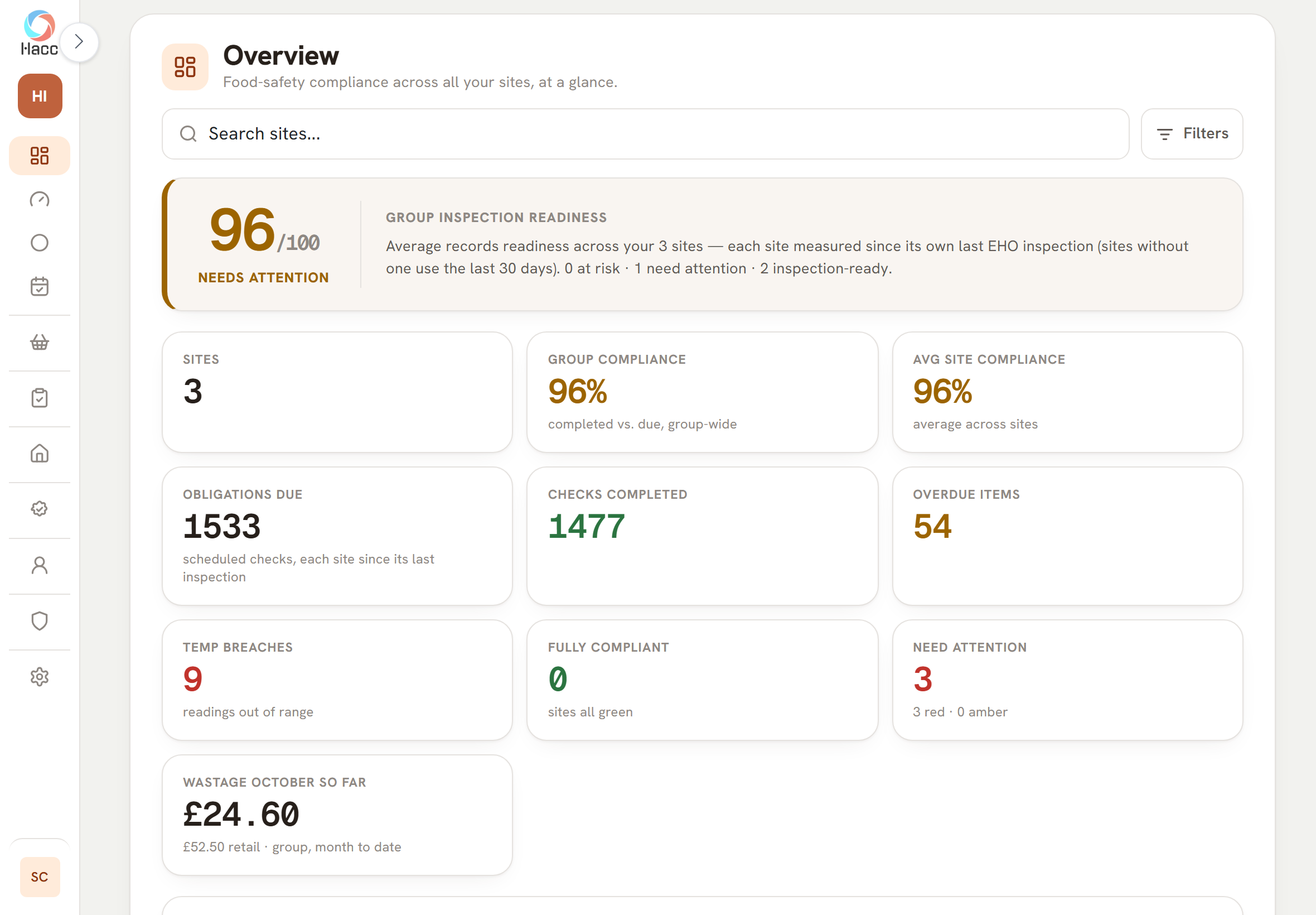
The Overview page on a tablet, with the line "Food-safety compliance across all your sites, at a glance." under the heading, a "Search sites..." box and a Filters button. A band headed "Group inspection readiness" shows 96 out of 100 and the label "Needs attention" in amber. Its text says the figure is the average across 3 sites, each measured since its own last EHO inspection, and ends "0 at risk · 1 need attention · 2 inspection-ready." Six cards follow: Sites 3, Group compliance 96%, Avg site compliance 96%, Obligations due 1533, Checks completed 1477 and Overdue items 54.
Three demo shops on one page: a record-keeping score for the group, with the checks due, done and overdue across all three.

Invite your staff by email, shop by shop

A manager gives each member of staff their own sign-in, sets what they can do at each shop, and can stop a leaver signing in.

  • To add someone you press "Invite User" and type their first name, last name and email address. In the same box you tap every shop they work at and choose a role for each shop.
  • When someone leaves, set them to "Frozen". They are refused the next time they sign in, and the records they made are left as they were.
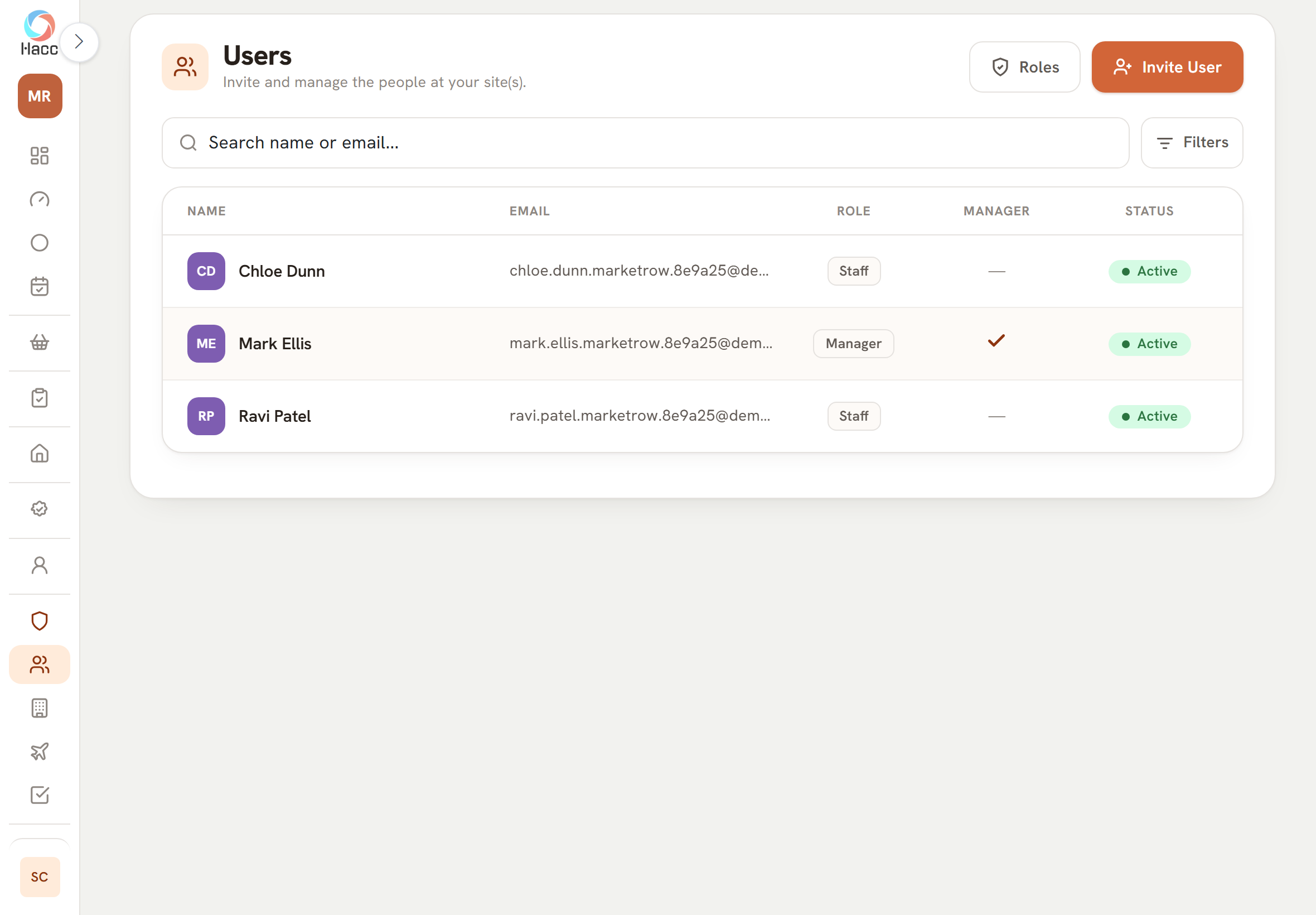
The Users page on a tablet, with the line "Invite and manage the people at your site(s)." under the heading and two buttons at the top right, "Roles" and "Invite User". Below a "Search name or email..." box and a Filters button is a table with the columns Name, Email, Role, Manager and Status. It lists three people: two with the role "Staff", and one with the role "Manager" and a tick in the Manager column. All three are "Active". The email addresses are cut short.
The team at one shop: each person's role, who is a manager, and whether their sign-in is active.
  • Change shop from the top of the menu

    Someone who works across several shops picks a shop from the menu, and the whole app changes to that shop's records.

    • If you have access to more than one shop, the shop you are in sits at the top of the menu as a chip with its coloured initials and name.
    • You work in one shop at a time. The page that shows your shops together is the Overview.
  • Build a checklist once and copy it to your other shops

    A manager of several shops writes a checklist or a pick-list in one shop and gives the others their own copy, without typing it in again.

    • A saved checklist has a "Copy to sites" button. In the box that opens you tap the shops you want.
    • Change one shop's copy later and the others stay as they were.
  • Roles: tick what each kind of staff can see and change

    A manager decides, area by area, what counter staff, butchers and anyone else can view, add, change and delete.

    • A new role starts with every box ticked, so you only untick what that role should not do. A person's limits come from their role: someone left with no role can do everything a role could allow.
    • Roles belong to one shop. A person who works in two shops can hold a different role in each.
  • An audit log that flags the changes worth a second look

    A manager can see who changed what and when, and the app puts a badge on changes that look like a record being altered after the event.

    • Each entry gives the action, the sign-in email of the person who did it, a line of detail, and the date and time to the minute. Old and new values are shown where the app records them. The app has no way to edit or delete an entry.
    • As each entry is written it is checked against 15 warning signs. A match puts one of three badges on the row: "High risk", "Review" or "Noted".
  • Opening days and hours, so checks are asked for only when you trade

    You tell the app which days and hours you open, plus one-off closures, and it stops asking for checks when you are shut.

    • On a closed day, daily checks are not asked for and the day needs no sign-off. Weekly, monthly and every-so-many-days checks that land on a closed day move to the next working day.
    • On a day you are open, a check with a set due time outside that day's hours is not asked for. A check with no set time is still asked for.
    • One-off closures, such as bank holidays, are added as exception days.
  • Staff holidays on the Tasks calendar

    A manager notes who is off and when, and the dates show on the Tasks calendar for the team to see.

    • Each holiday shows on the Tasks calendar as a small chip with the person's name on every day they are off.
    • Staff see the name and the dates. The manager's note is not shown to them.
  • Pick-lists in your shop's own words

    The choices your staff pick from, such as wastage reasons and product categories, are yours to add to, rename and retire.

    • The Lists page in Settings holds eleven lists, among them product categories, checklist types, return reasons, wastage reasons, staff departments and sign-off reasons.
    • An archived option drops out of the pick-lists but stays on the records that already use it, and can be brought back.
  • A tablet or a computer, with nothing to install

    hacc.app runs in a web browser, so the tablet by the counter and the office computer open the same records.

    • There is nothing to download or install.
    • It needs an internet connection.
  • Each person signs in as themselves

    Each member of staff signs in with their own email and password, so a record is tied to the person who made it.

    • After signing in, a manager lands on the Dashboard. Other staff land on Today, their list of jobs for the day, if their role lets them see it.
    • A sign-in lasts up to 48 hours. After that the person signs in again.
  • Where your records are kept

    Your records are held on Microsoft Azure, and records are stamped with who made them and when.

    • The app and its database run in Microsoft Azure's UK South region, and the app is served over an encrypted connection.
    • Most changes and deletions are logged, and the ones that look wrong are flagged.
    • The Inspection page and a month of the Tasks calendar print through your browser. The photos and documents you attach are hosted on Microsoft Azure, and can be opened or downloaded again.

Part 6

Getting started

Set-up from your paper sheets, what carries over, the day you start, invitations and the demo.

We set your shop up from the paper sheets you already keep

You send us your sheets and a member of our team builds your shop in hacc.app from them, so your staff start with your own fridges, checklists and suppliers in place.

  • You send photos or spreadsheets of the records you keep now: cleaning schedules, opening and closing checks, fridge and freezer logs, supplier lists, the COSHH register and training records.
  • While we are setting a shop up it is switched off. No checks are asked of your staff and nobody has been sent an invitation.
  • Before the shop is switched on we read the whole set-up back and go through it with you.
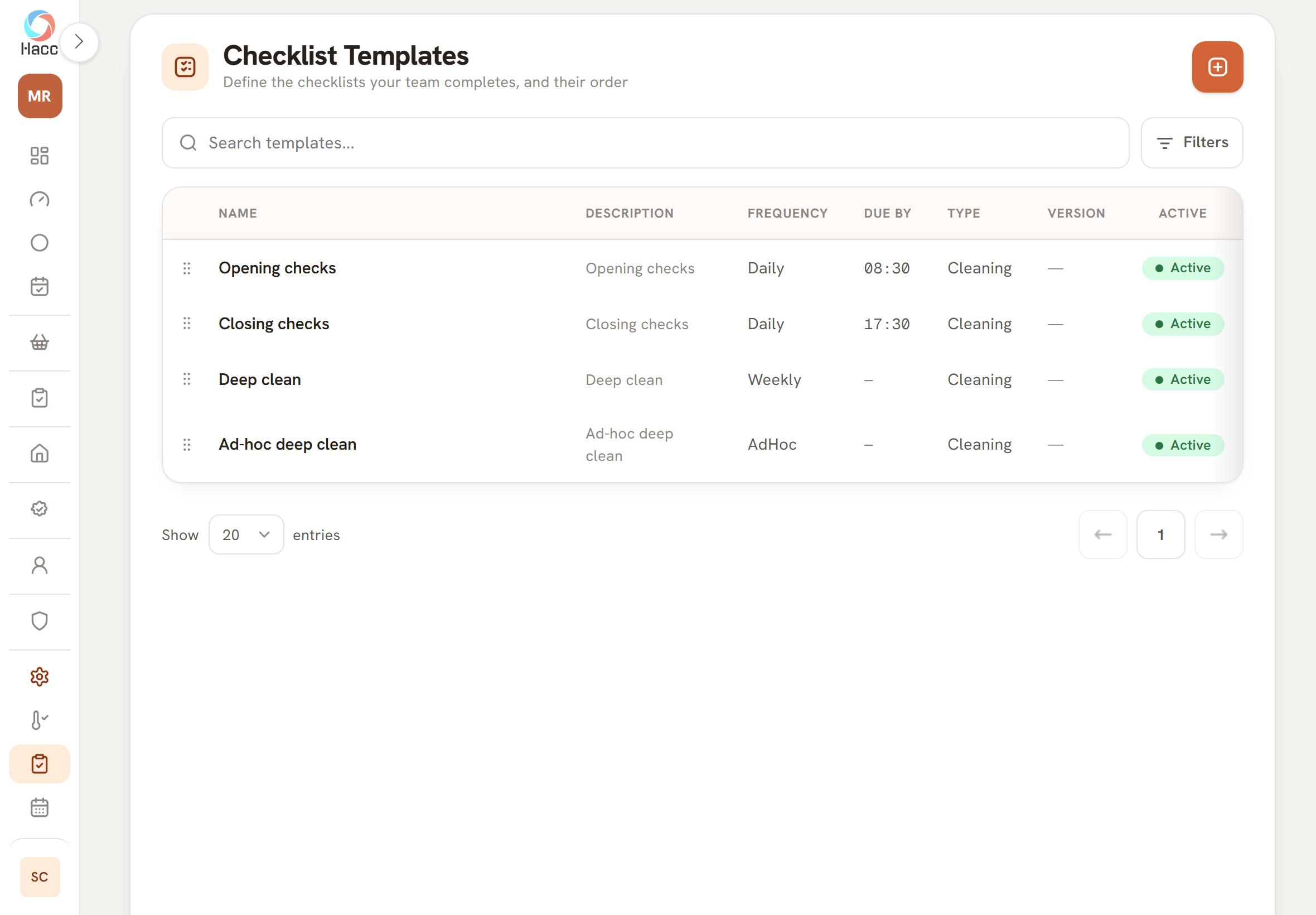
The Checklist Templates page on a tablet, under the line "Define the checklists your team completes, and their order", with a search box, a Filters button and an add button. A table with the columns Name, Description, Frequency, Due by, Type, Version and Active lists four checklists: "Opening checks", Daily, due by 08:30. "Closing checks", Daily, due by 17:30. "Deep clean", Weekly. "Ad-hoc deep clean", with the frequency shown as "AdHoc". All four are of type Cleaning and marked "Active", and each has a drag handle at the left.
A demo shop's checklists as they sit under Settings, where a manager can change them after set-up.

Where each paper sheet goes, and what stays on paper

Each kind of sheet you keep has a set place in hacc.app, and a short list of things is left behind on purpose.

What does not come across

  • Past readings and past records, past deliveries included. Your shop starts clean on the day it goes live.
  • Your allergen matrix. There is no place for it in the app, so it stays on paper.
  • Minimum and maximum thermometer columns. A reading in the app holds one figure.
  • The documents themselves. The safety data sheets and certificates are uploaded in the app by your manager, or by staff whose role allows it.

A member of our team does this work and checks it with you. It is not an automatic import.

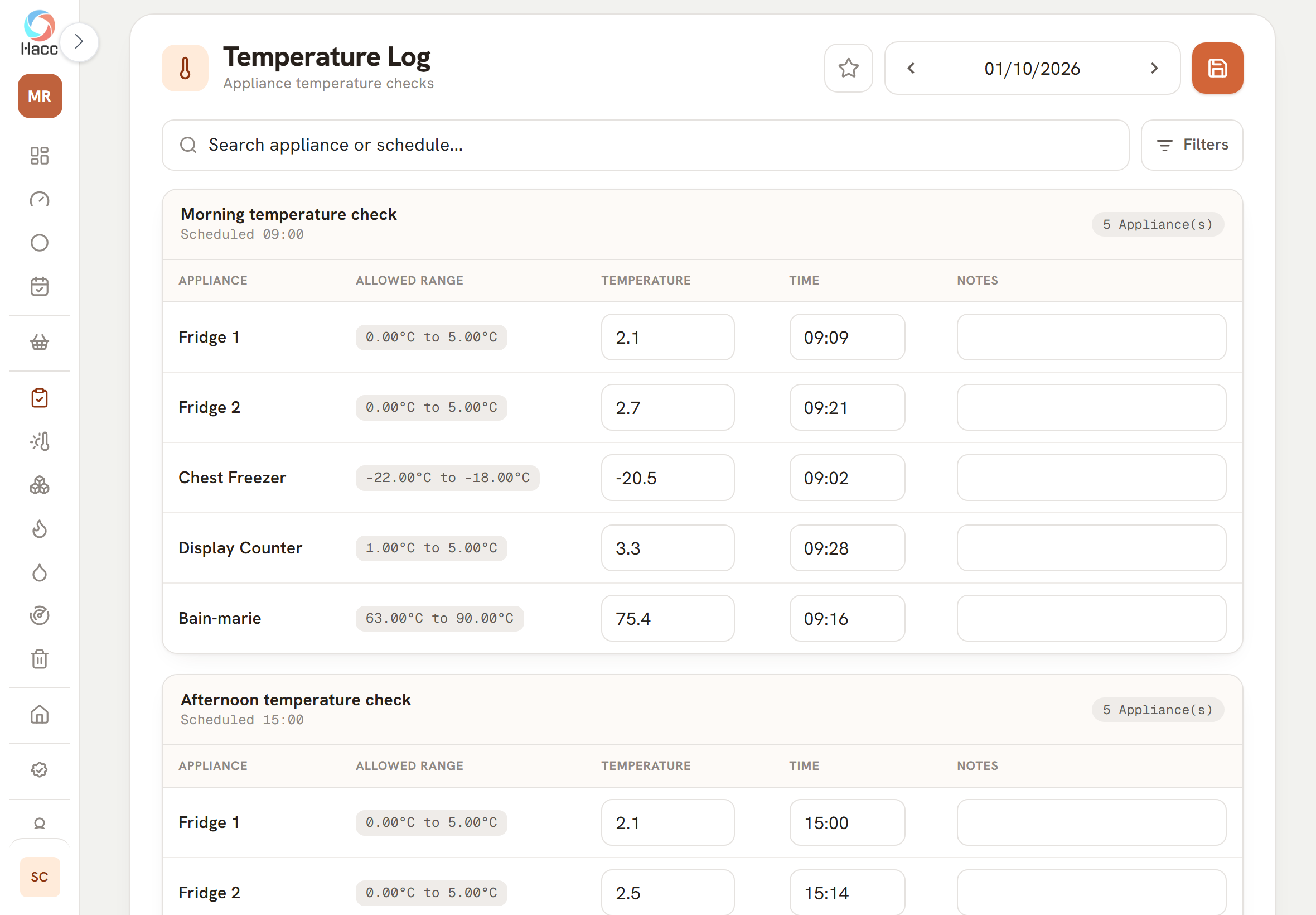
Four rows of a temperature check under the column headings Appliance, Allowed range, Temperature, Time and Notes. Fridge 1, allowed 0.00°C to 5.00°C, reads 2.1 at 09:09. Fridge 2, allowed 0.00°C to 5.00°C, reads 2.7 at 09:21. Chest Freezer, allowed -22.00°C to -18.00°C, reads -20.5 at 09:02. Display Counter, allowed 1.00°C to 5.00°C, reads 3.3 at 09:28. The notes boxes are empty.
Each row of a fridge sheet becomes an appliance with its own allowed range, and each column of readings becomes a check.
Fridge, freezer and chiller log
Each row of the sheet becomes an appliance with its safe range in °C. Each reading column becomes a temperature check.
Cleaning schedule
One checklist for each frequency: daily, weekly, monthly and so on. A job done "after use" becomes a checklist you record when it happens.
COSHH register
One entry for each chemical. Each entry is flagged until its safety data sheet is uploaded in the app.
Training matrix
The people become staff members, who do not need a login. The columns become courses. The ticked cells become training records.

The demo: a sample shop with 90 days of records

Ask for a demo and we build you a private sample butcher's shop, already holding 90 days of invented records, and show you round it.

  • It is either a single shop, which can carry your own shop's name, or a head office with three shops.
  • You can use the demo as you would a real account: record checks, add people, change roles.
  • If you go ahead, your own shop is set up fresh from your own sheets.
A card headed "Records kept over this period", 04 Jul 2026 to 01 Oct 2026, with six figures: 100% due checks done, 770 temperature readings, 661 checklist items, 38 cooking logs, 13 jelly logs and 25 deliveries. A line beneath begins "1,425 of 1,425 scheduled checks completed".
Ninety days of invented records at one demo shop, counted on its Inspection page.
  • Going live: the day your shop is switched on

    On the day you start, the day's checks appear, your record begins clean from that day and your team are sent their invitations.

    • Checks left over from the set-up days are cleared. You do not start with a list of missed checks you were never going to do.
    • Your daily sign-off record and your record-keeping score begin on go-live day, not on a set-up day.
    • Everyone on the shop who has not yet set a password is emailed an invitation. We can hold the invitations back and send them later if that suits you better.
  • Invitations: each person chooses their own password

    Everyone who will use hacc.app gets an emailed invitation, sets their own password and signs in with their email address.

    • The email carries a "Set your password" link. The link lasts 24 hours. If it runs out, the invitation can be sent again.
    • Not everyone needs a login. Counter staff who never use the app can still be on the training matrix as staff members, which are kept apart from user accounts.
  • More than one shop: set one up, then copy it

    A group is set up as one business with a head office above the shops, and a shop that runs like another does not have to be built twice.

    • Where shops run the same way, we set one up and copy its appliances, temperature checks and checklists to the others.
    • Suppliers, products, COSHH chemicals, staff and training are not copied. They are set up for each shop.

Request a demo

Request a demo

Look round a shop that is already set up

A person at Conexio reads your request and replies by email. We then build your demo shop, holding 90 days of invented records, and show you round it.

How many shops?

Or email sales@conexiosoftware.com

How we use these details is in our privacy policy.